Connecting a Digital Signage Player to Garlic-Hub
This guide walks you through connecting SMIL Media Players to Garlic-Hub. The process requires only configuring the content URL.
1. Prerequisites
| Component | Requirements |
|---|---|
| Media Player | One of the following compatible options: Garlic-Player (open source) IAdea-Player |
| Garlic-Hub | Access to http://<your-domain>:<port>/smil-index |
| Network | Connection between player and CMS |
2. Determining Your Content URL
Players require an index file to enable content playback. This index provides:
- Location of media files
- Destination for log data
- Other configuration details
Our indexes use the standardized SMIL multimedia language.
Example:
If Garlic-Hub is hosted at http://localhost:8090, your content URL will be: http://localhost:8090/smil-index
3. Connecting Your Player
3.1. Garlic-Player
⚠️ Warning: If you need to specify a port, use the latest dev-release of Garlic-Player, not the stable v0.6.0.
- Connect a keyboard to your device and start Garlic-Player
- Press
Ctrl+Sto open the settings dialog - In the configuration screen that appears:
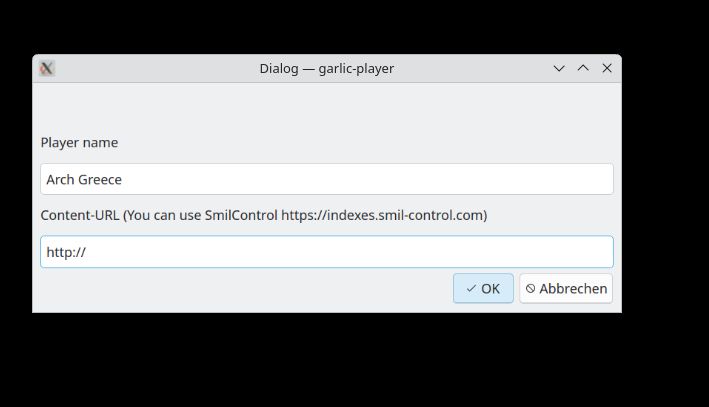
- Enter your content URL (
http://<your-domain>:<port>/smil-index) in the Content-URL field - Press Enter or click OK to save
3.2. Garlic-Player with Android Launcher
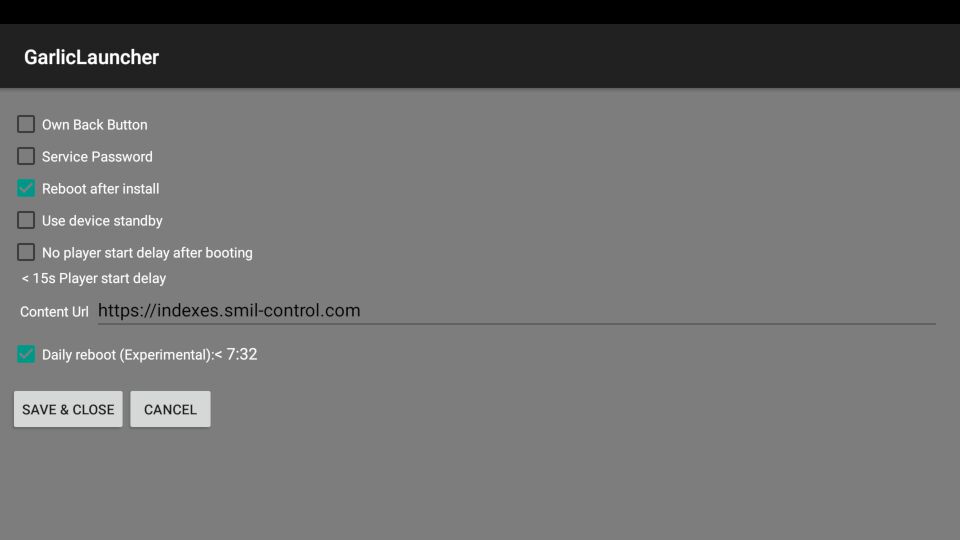
If you use Android, it is recommended to also use the Android Launcher. Ctrl+S will not work in this case, as the settings are managed by the launcher.
Open Settings & Configuration in the launcher to enter the content URL as described above.
3.3. IAdea-Player
- When the player starts, you’ll see this opening screen for approximately 15 seconds:
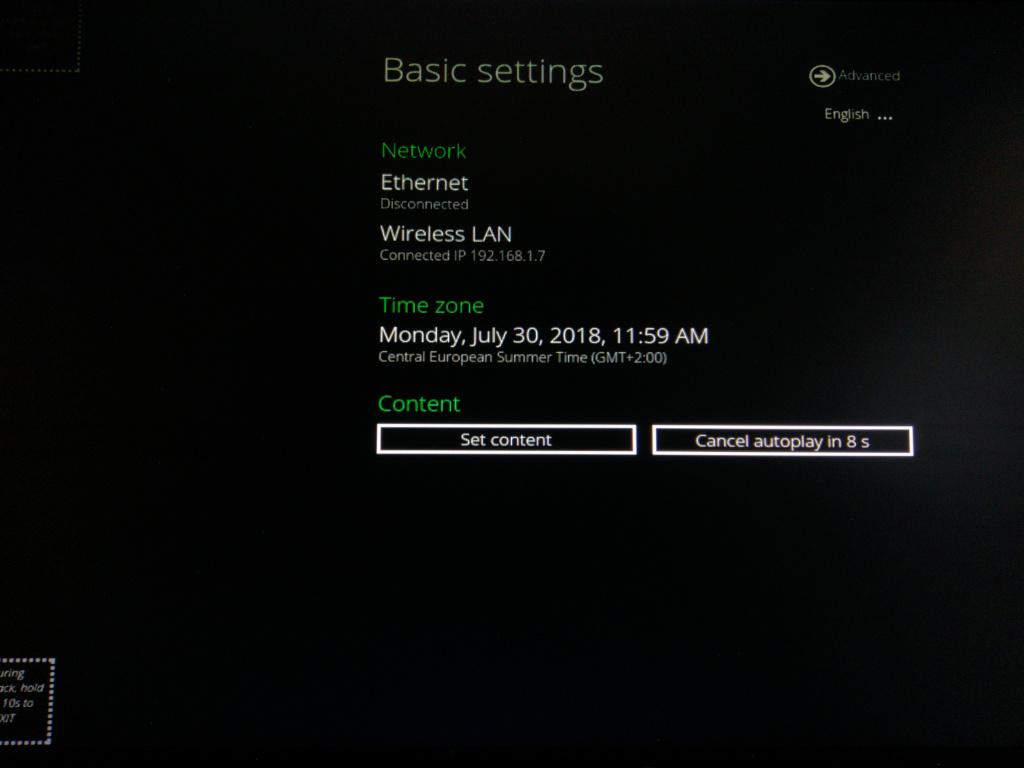
- Press “Set content” to access the configuration options
- In the content URL configuration screen:
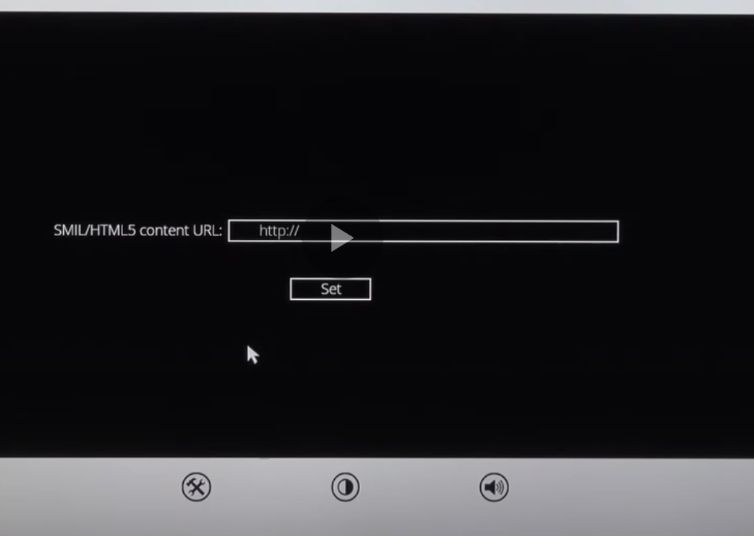
- Enter your content URL (
http://<your-domain>:<port>/smil-index) in the content-url field - Press Set to save your configuration
Once the player is recognized, Garlic-Hub stores its information in the player database, and it will appear in the player- overview.
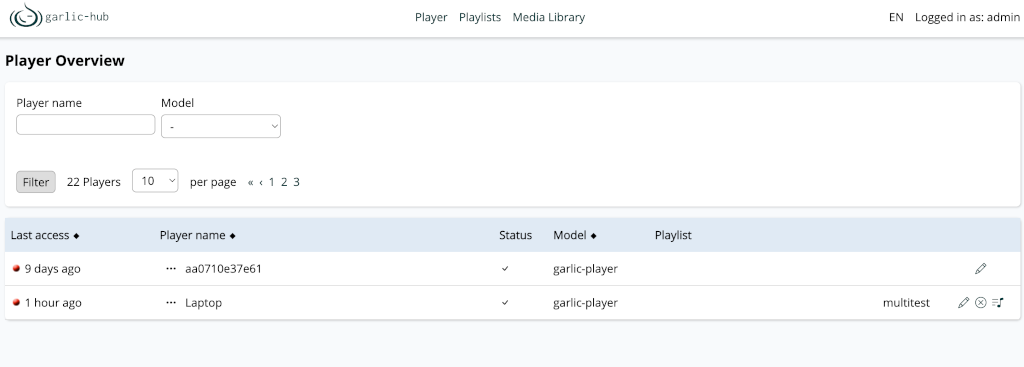 .
.