Manage User Accounts, Statuses, and Access
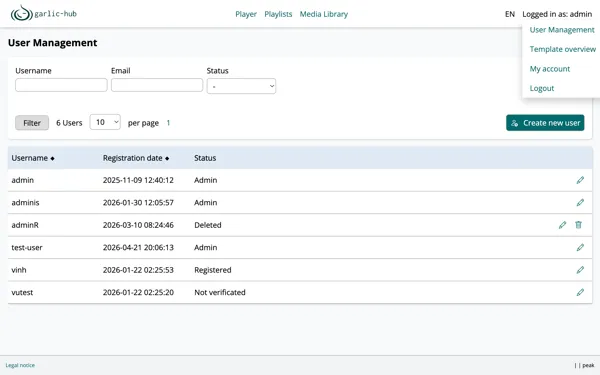
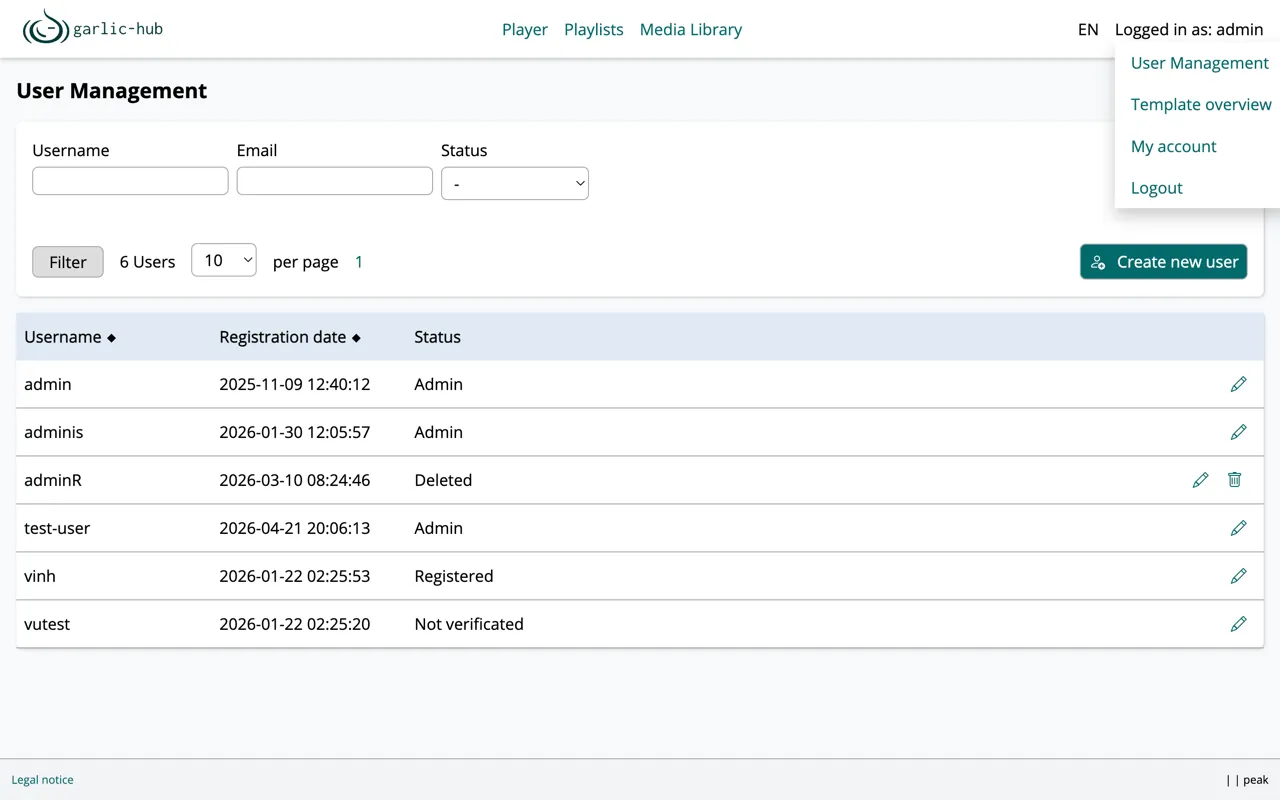
User Management is an admin area where you create user accounts, change their status, and remove them. You reach it through the user menu: click Logged in as in the top right corner and select User Management. The same menu also contains the Template Overview, the administrator’s other management area.
Roles and Access
garlic-hub currently uses a simple permission model with one administrator and regular users. It will be extended in later versions.
Regular users work in their own scope. They have access to:
- Playlists they created themselves
- Media they uploaded themselves
- Templates that were made available to them (global templates or private templates they own)
- Players they connected themselves
The administrator controls everything. Only the admin can create and manage templates, manage user accounts, assign statuses, block users, and view and manage all players and playlists in the system.
Admins never set passwords for users. When a new password is needed, a link is generated and the user sets the new password themselves. This is safer because the password is never known to anyone but the user.
The Overview List
The list shows every user account with its username, registration date, and current status. You can sort by username or registration date by clicking the column headers.
Above the list you can filter by username, email, and status. The email filter is intended for later versions that include an email sender. Enter your criteria and click Filter. The counter next to the button shows how many users match, and the dropdown sets how many entries appear per page.
Each row has an edit icon on the right that opens the edit form for that user.
Creating a New User
Click Create new user on the right side above the list. Currently you can only create regular users. There is exactly one administrator account; additional admins cannot be created.
User Statuses
Each account has a status that is shown in the list and can be used as a filter. Statuses are set in the create and edit forms. The available statuses are:
- Admin: The administrator account.
- Registered: A regular, active user account.
- Not verified: The account exists, but the user has not completed verification yet. New users receive a verification link, click it, and set their password. The link is found in the edit form. Currently the admin has to send this link manually; sending it by email is planned.
- Blocked: The account is blocked and cannot be used.
- Deleted: An account marked for deletion. See below.
Users cannot register themselves. All accounts are created by the administrator. Passwords work the same way as verification: the admin never enters a password, the user sets it via a link. The details are explained in the create and edit form documentation.
Deleting a User
Deleting works in two steps. First the account is marked as Deleted. Only then does a trash icon appear next to the edit icon in the list. Clicking the trash icon removes the user permanently from the database.
As long as a user is only marked as Deleted, the account can be reactivated. After the physical deletion from the database this is no longer possible.