Create Users and Manage Their Verification and Passwords
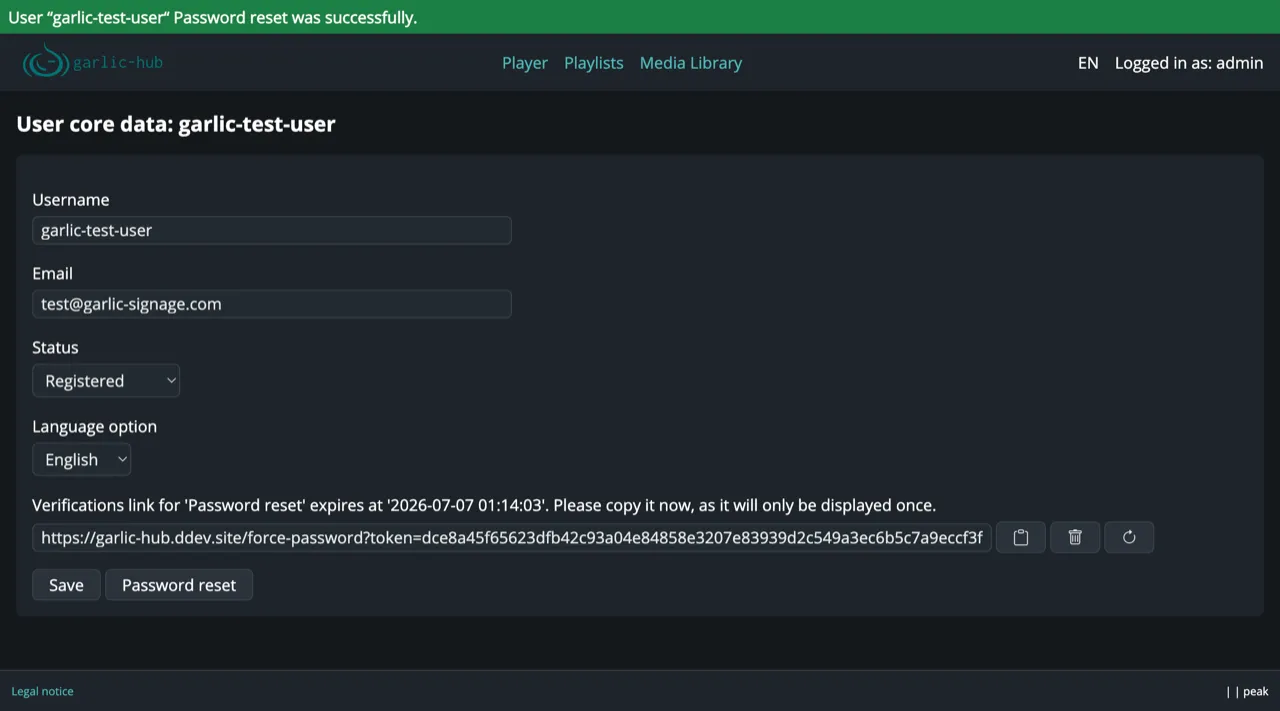
The user form handles both creating and editing accounts. You reach it from the User Management overview: the Create new user button opens an empty form, the edit icon in the list opens the form for an existing user. The form is titled User core data.
Form Fields
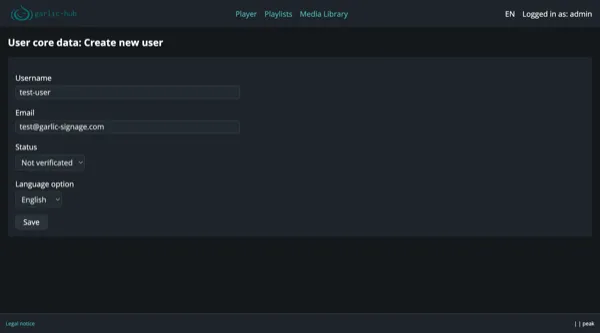
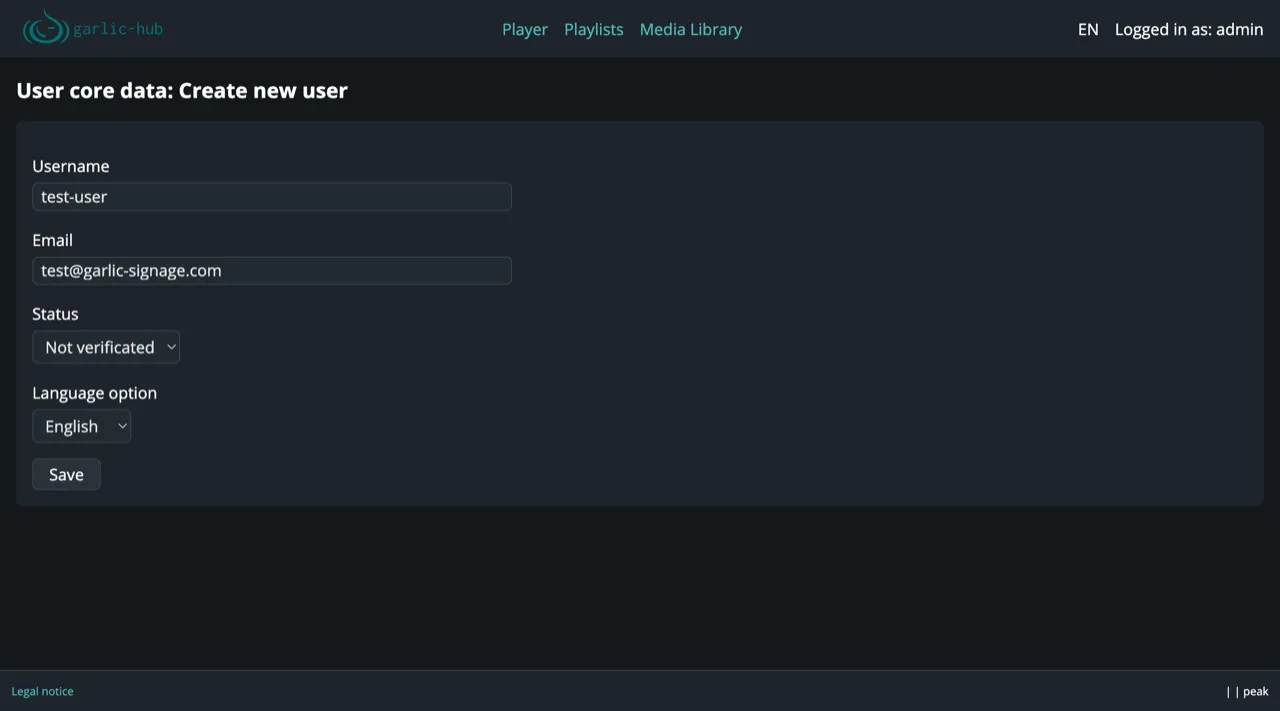
The form contains:
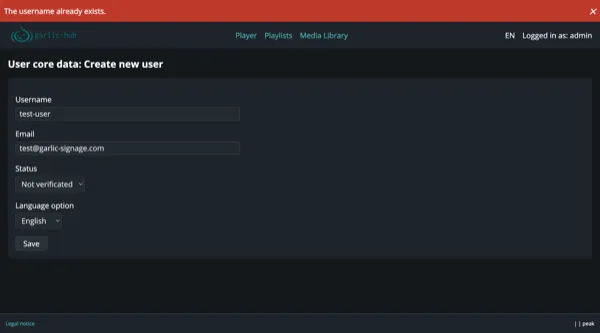
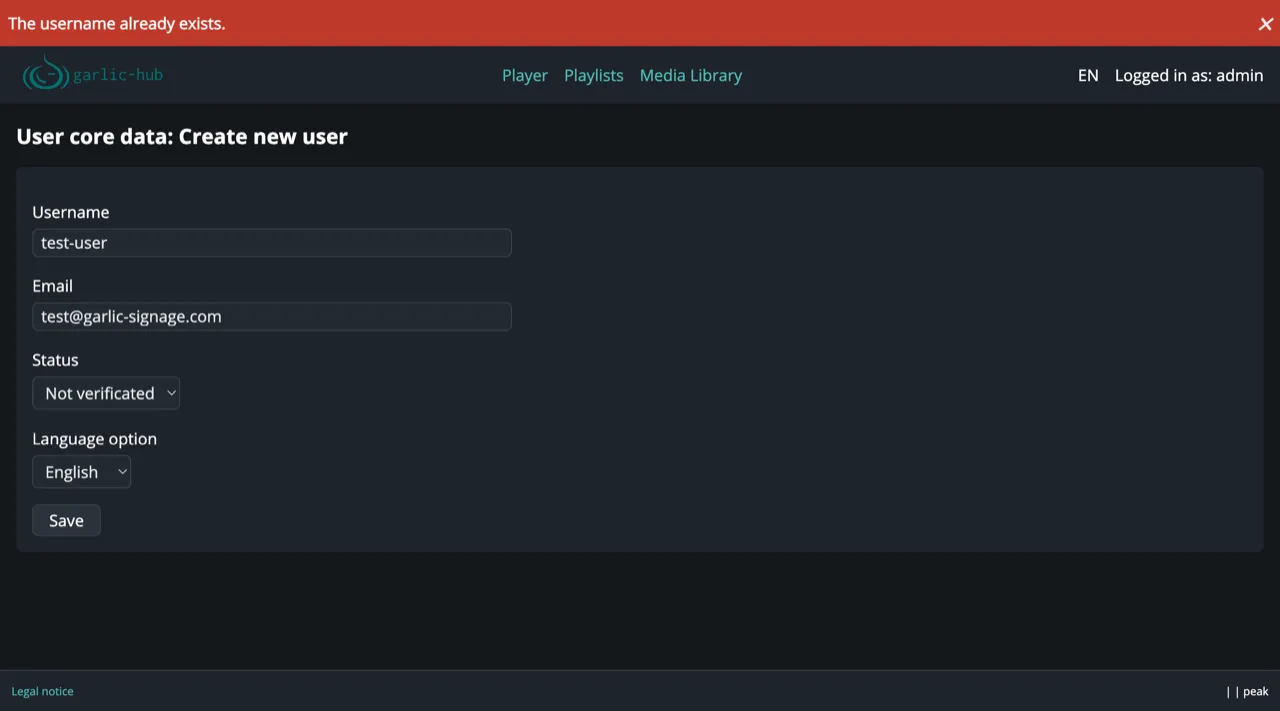
- Username: The login name of the account. It must be unique. If the name is already taken, saving fails with the error message “The username already exists.”
- Email: The user’s email address.
- Status: The account status: Not verificated, Registered, Banned, Deleted, or Admin. See User Statuses for what each status means. The Admin status is currently informational; later versions will have areas that are only accessible with this status.
- Language option: The UI language for this user.
All fields can also be changed later in the edit form. Click Save to store the account. After creating a new user, you return to the overview list. Every new user automatically gets their own folder in the media pool, named after them.
Creating a User and the Initial Password Link
Since admins never set passwords, a new user needs a way to verify the account and choose a password themselves. This works with a verification link.
The initial password token is always generated when a user is created, regardless of the chosen status, since without it the user has no password at all. The recommended status for new users is Not verificated. It reflects the actual state of the account and fits the planned self-registration in later versions, where users verify themselves. Without a password the user cannot log in. As soon as the user sets the initial password, the status automatically switches to Registered. This is also why the initial password and the password reset are separate actions.
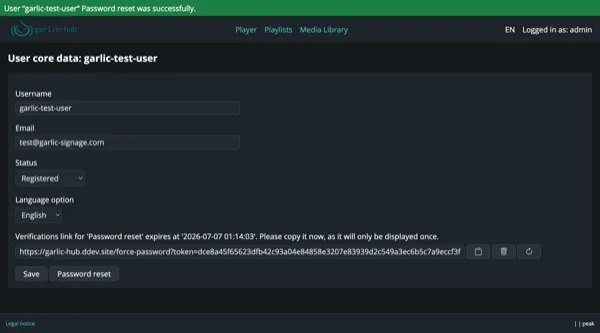
To get the link, go back to the overview list and open the new user with the edit icon. The edit form now shows the verification link once, including its expiry time. Copy it now, as it only is displayed once, and send it to the user. This step is currently manual and will be solved more elegantly later.
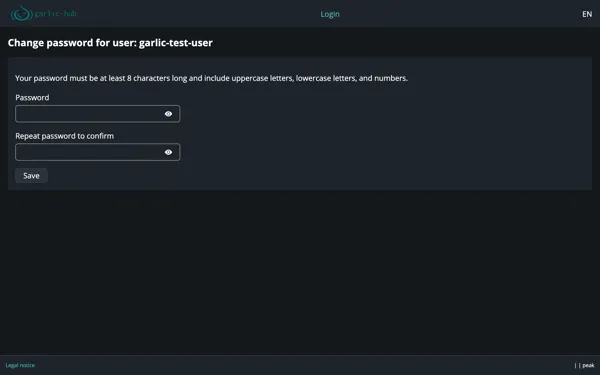
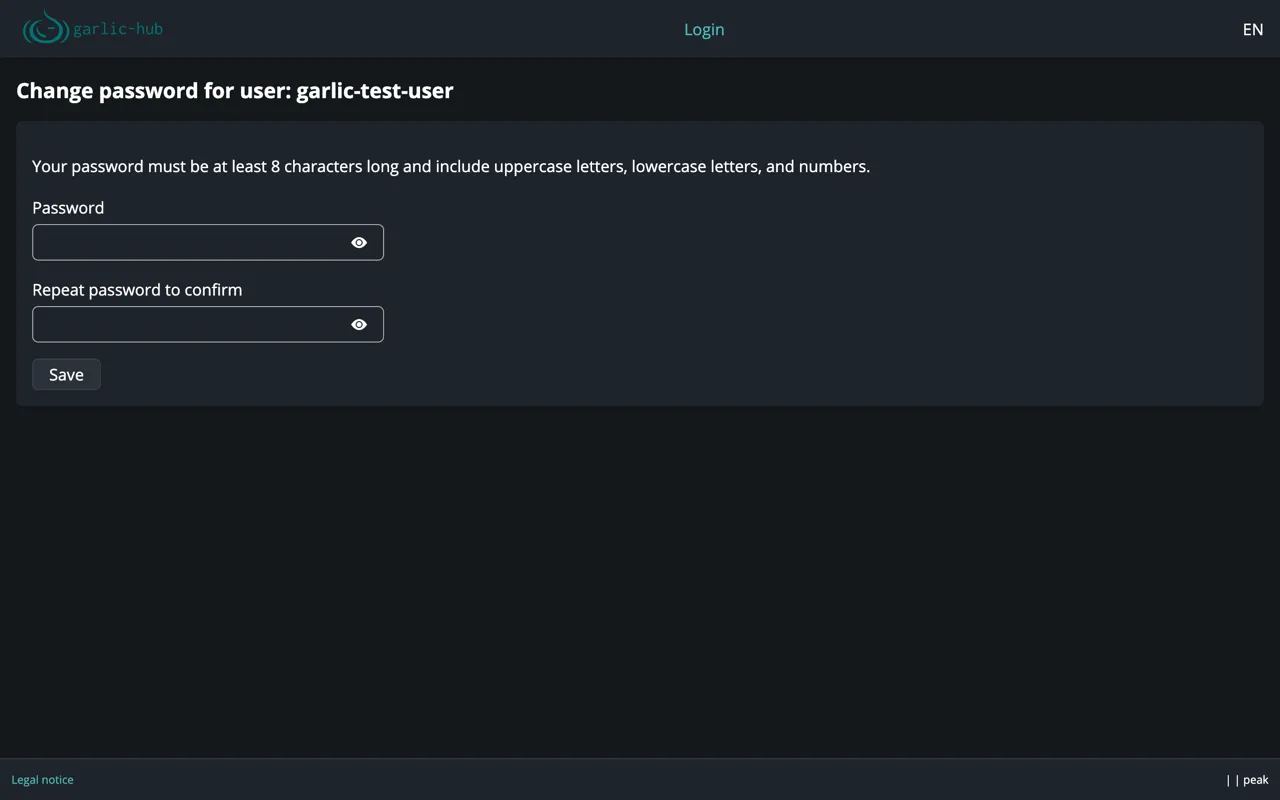
The user who clicks the link lands on a password page with the username in the title. The password must be at least 8 characters long and include uppercase letters, lowercase letters, and numbers. The user enters it twice and clicks Save.
The initial link expires after 24 hours.
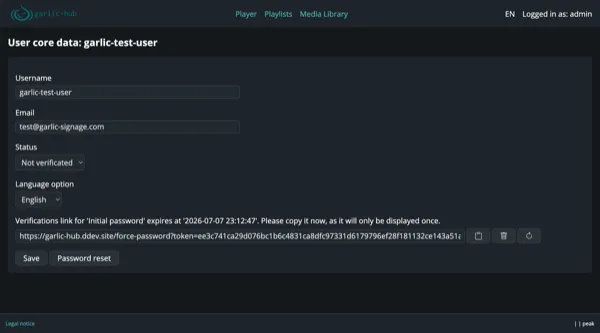
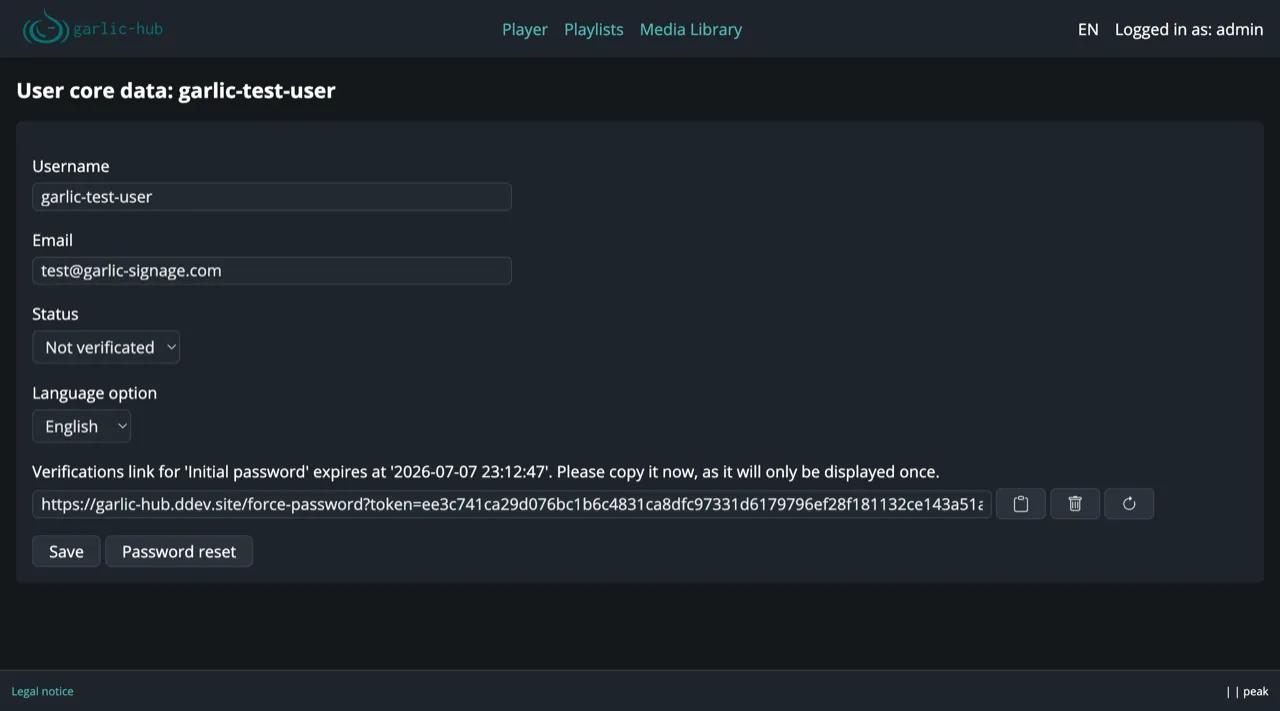
Next to the link, there are three icons:
- Clipboard: Copies the link to the clipboard.
- Trash: Deletes the token.
- Round arrow: Generates a new link, for example, when the old one has expired. You stay in the form, so you can copy the new link right away.
Resetting a Password
To give an existing user a new password, open the account in the edit form and click Password reset. This generates a new verification link that you copy and send to the user, who then sets the new password. The reset link expires after 3 hours.
Only one token can be active at a time. If you try a password reset while a token is still active, it is refused. Delete the existing token first with the trash icon, then start the reset.