Manage Canvas Templates and Their Visibility
Templates are reusable content elements you build once and then place into playlists. A single template can appear in many playlists at the same time, which makes it useful for recurring layouts you want to keep consistent across your signage. Editing the template later updates it in one place instead of in every playlist that uses it.
Templates are an admin area. Only admins can create and manage templates; other users can use existing templates in their playlists but cannot create them. Template creation and management happens in the template overview. Building the actual content of a template is done in the composer, described in Template Composer.
Opening the Template Overview
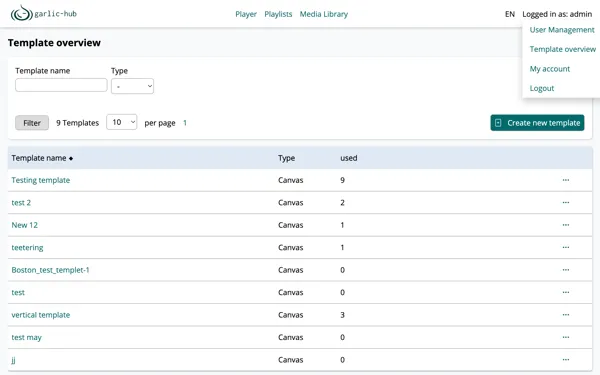
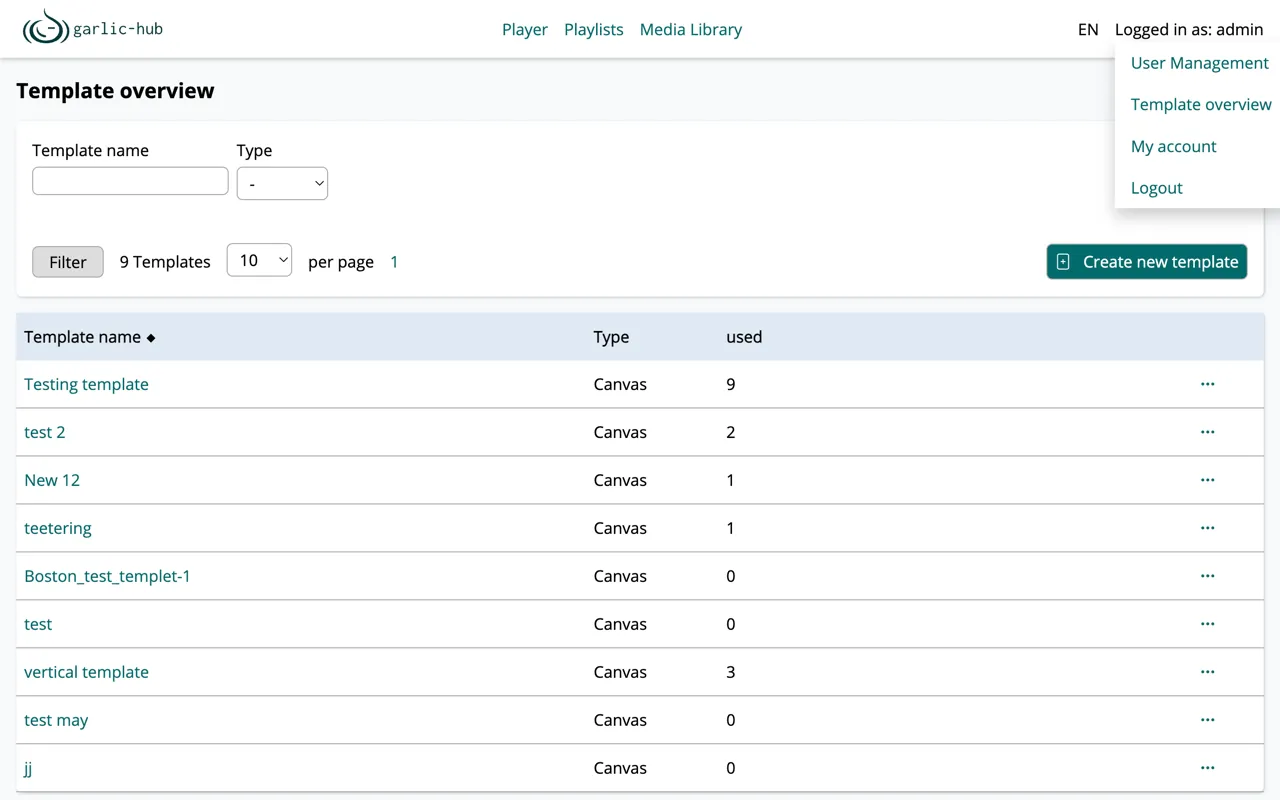
The template overview is not part of the main navigation. You reach it through the user menu at the top right, under Logged in as. Open the menu and choose Template overview.
The Overview List
The list shows all templates you are allowed to see, with three columns:
- Template name is the name of the template and a link. Clicking it opens the template in the composer.
- Type is the template type. At the moment the only type is Canvas.
- Used shows how often the template is currently used across playlists. A value of
0means the template is not used anywhere. This is a display only value.
Only the Template name column is sortable. Click the column header to toggle the sort order.
Filtering and Paging
Above the list you can narrow down what is shown. Enter a Template name to filter by name, and pick a Type to filter by type. Click Filter to apply. The per page dropdown controls how many templates appear on one page, and the page numbers to its right let you move between pages.
Creating a New Template
Click Create new template in the overview. This opens the settings form where you define the basic properties of the template before you start building its content.
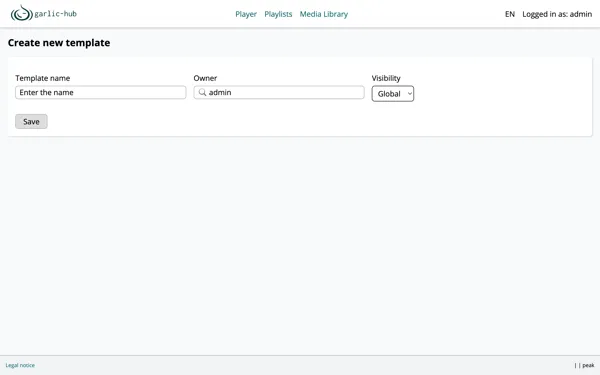
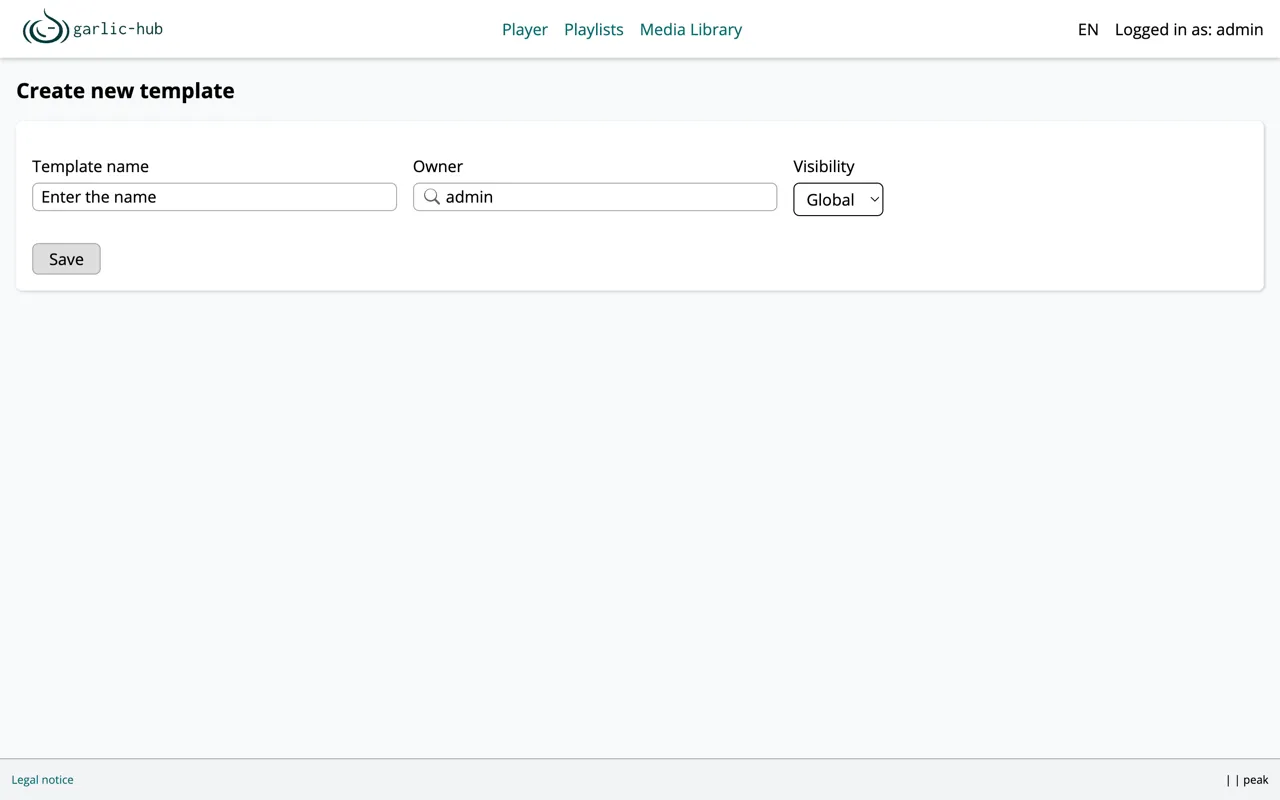
The form has three fields:
- Template name is the display name shown in the overview. It can be chosen freely and does not need to be unique, since templates are told apart internally by an id.
- Owner is the user the template belongs to. Only an admin can set this, and it defaults to the user creating the template.
- Visibility controls who is allowed to use the template. It has no default and must be selected explicitly. If you leave it unset, the template is not shown.
Visibility has two options:
- Global makes the template available to every user of the system.
- Private restricts the template to its owner and the admin. No other user can use it. Switching a template from global to private does not remove it from playlists that already use it, since those playlists may have edited their copy.
A template is added to a playlist in the Playlist Composer, where it is dragged in like a media item and can then be adjusted through its edit icon.
Click Save to create the template. The same settings form is used later to change these values, so name, owner, and visibility can be adjusted at any time.
Template Actions
Each row in the overview has a context menu, opened through the three dots at the end of the row.
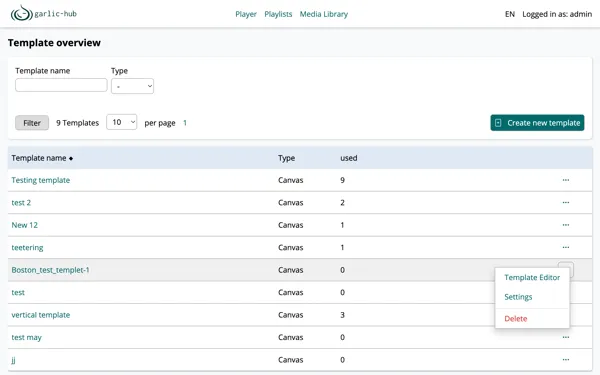
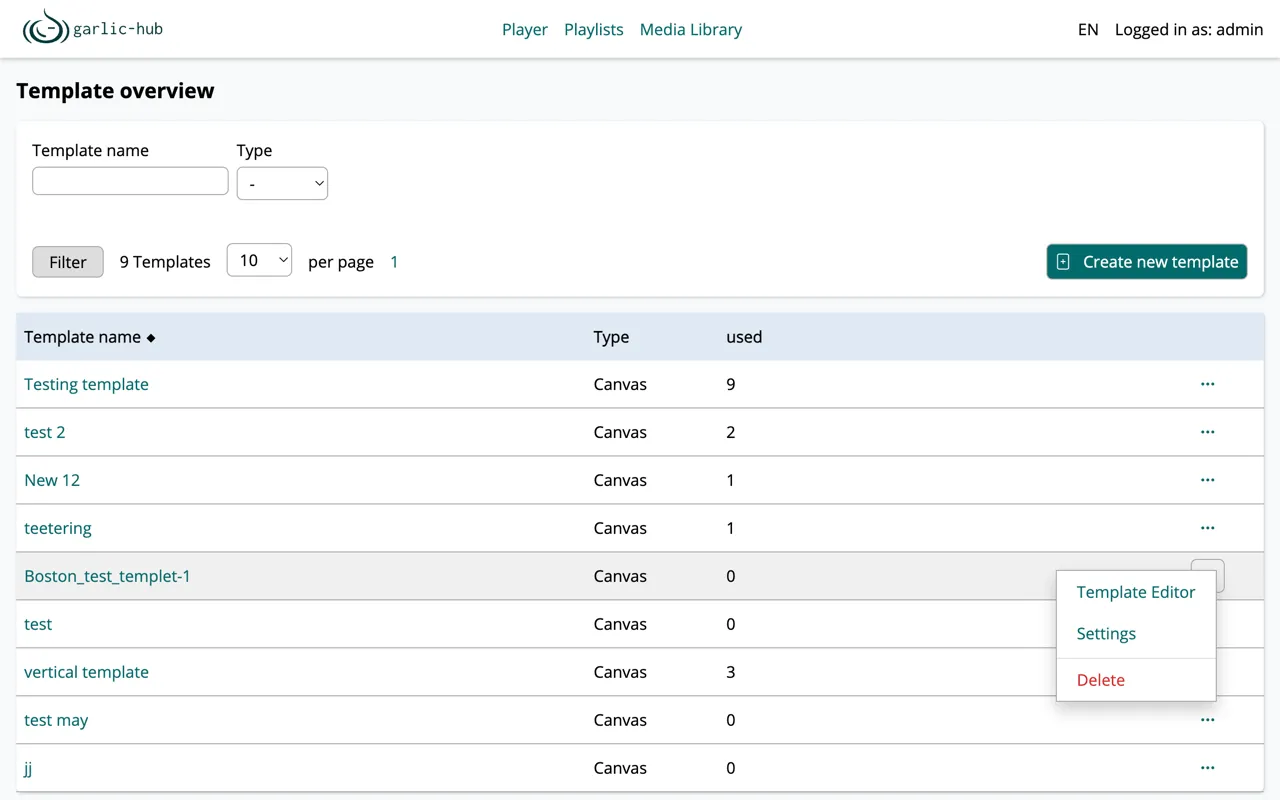
The menu offers:
- Template Editor opens the template in the composer, the same as clicking the template name.
- Settings opens the settings form with the template’s name, owner, and visibility, the same form used when creating a template.
- Delete removes the template after a confirmation dialog. This entry only appears when the template is not used, that is when Used is
0. If a template is used in one or more playlists cannot be deleted, and the entry stays hidden until it is removed from all playlists.