Playlists Overview
The Playlists Overview is the central list of every playlist in your installation. From here you find a playlist, see its mode and total duration, open it for editing, change its settings or delete it. It is also the place where you start a new playlist.
A typical workflow starts here: you create a playlist, choose its mode, then open the Playlist Composer or Multizone Composer to fill it with content.
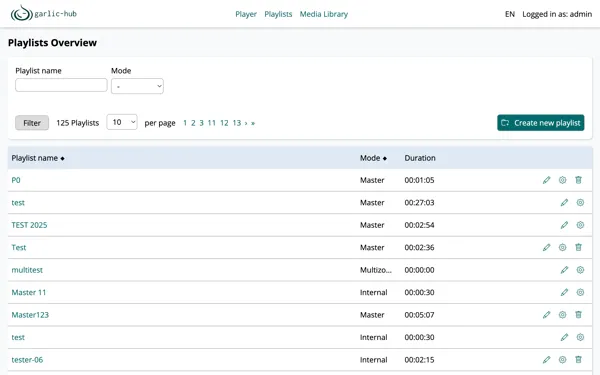
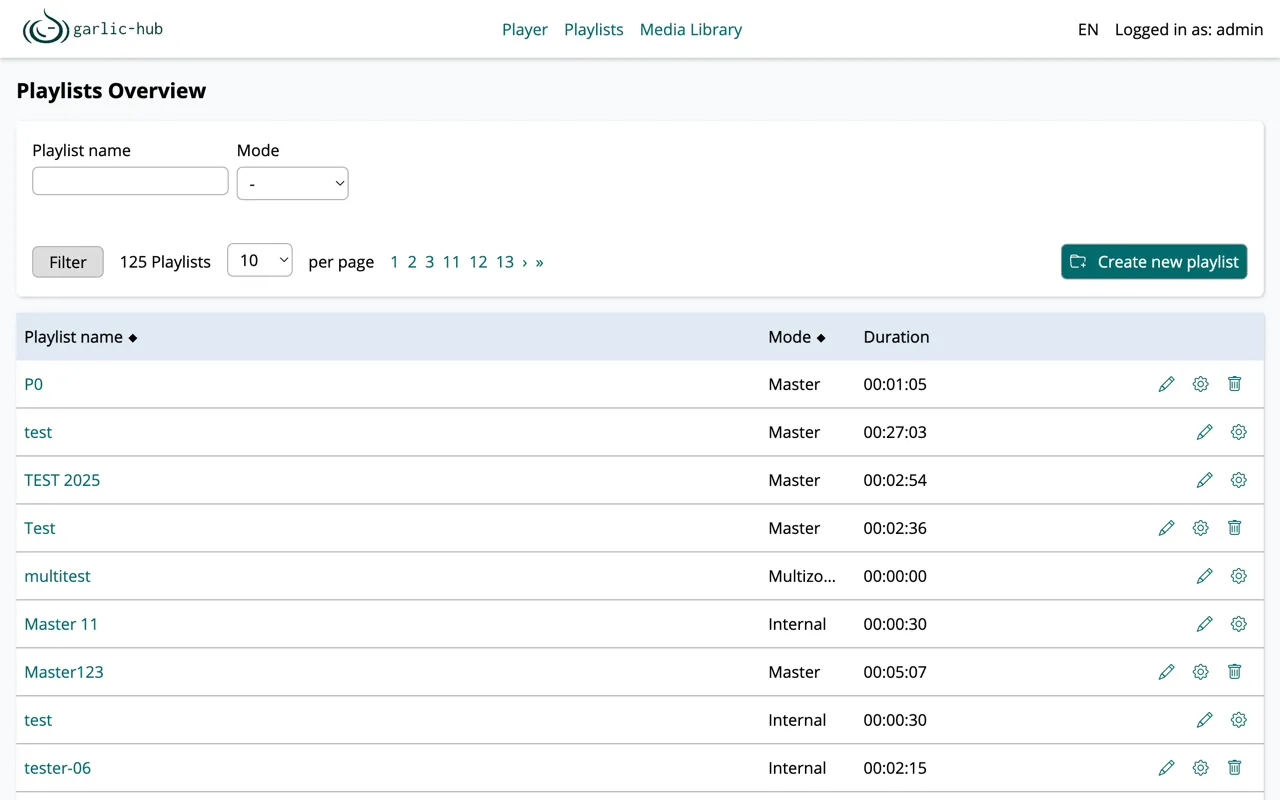
The Playlist List
Each row represents one playlist.
- Playlist name is a link. Clicking it opens the playlist in its composer.
- Mode shows whether the playlist is Master, Internal or Multizone. These modes decide how a playlist behaves and where it can be used. See Playlist Concepts for the differences and use cases.
- Duration is the total playback time of the playlist in HH:MM:SS. An empty playlist shows 00:00:00.
Sorting
The Playlist name and Mode column headers are sortable. The diamond marker next to a header shows the column the list is currently sorted by. Click a header to switch the sort column or reverse its direction.
Filtering
Use the filter card at the top to narrow down the list. This is useful once you have many playlists and only want to see a subset.
- Playlist name filters by name. A partial match is enough.
- Mode filters by Master, Internal or Multizone. Leave it on “-” to show all modes.
Click Filter to apply. The count next to the button updates to the number of matching playlists.
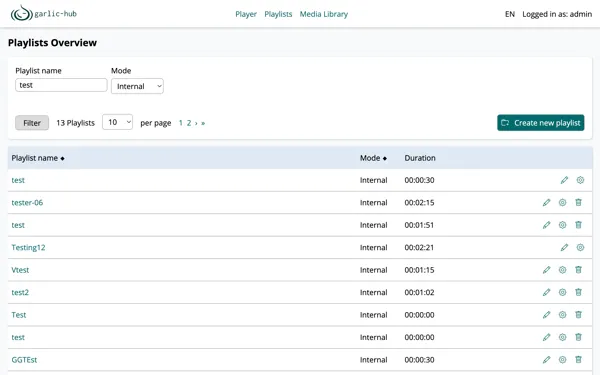
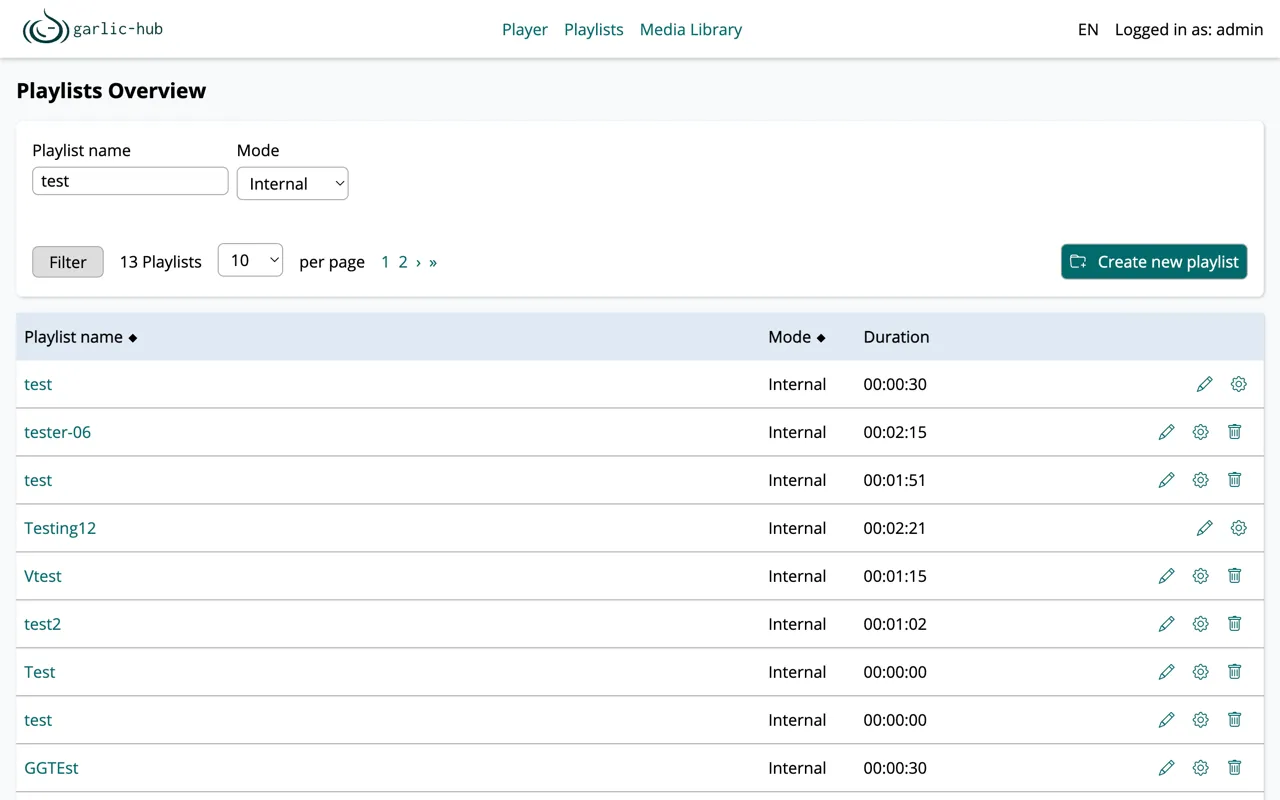
Pagination and Items Per Page
The list is paginated. The control next to the playlist count sets how many playlists are shown per page. Use the page numbers and the arrows to move through the result set.
Row actions
Each row has up to three action icons on the right.
- Edit (pencil) opens the playlist in its composer to add and arrange content.
- Settings (gear) opens the playlist settings, where you change the name, owner and, depending on the mode, the screen resolution.
- Delete (trash) removes the playlist.
Rectified spelling errors and refined grammatical clarityRectified spelling errors and refined grammatical clarityWhich icons appear depends on your permissions and the ownership of the playlist. You cannot delete a playlist which is in use. This means connected to the player or nested in another playlist. Therefore it will not show the trash icon.
Creating a Playlist
Click Create new playlist in the top right. A menu opens where you pick the mode for the new playlist.
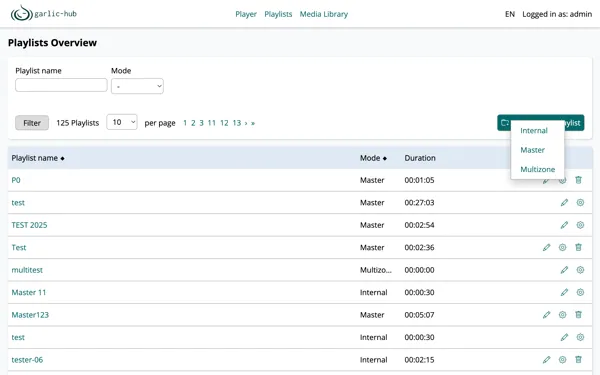
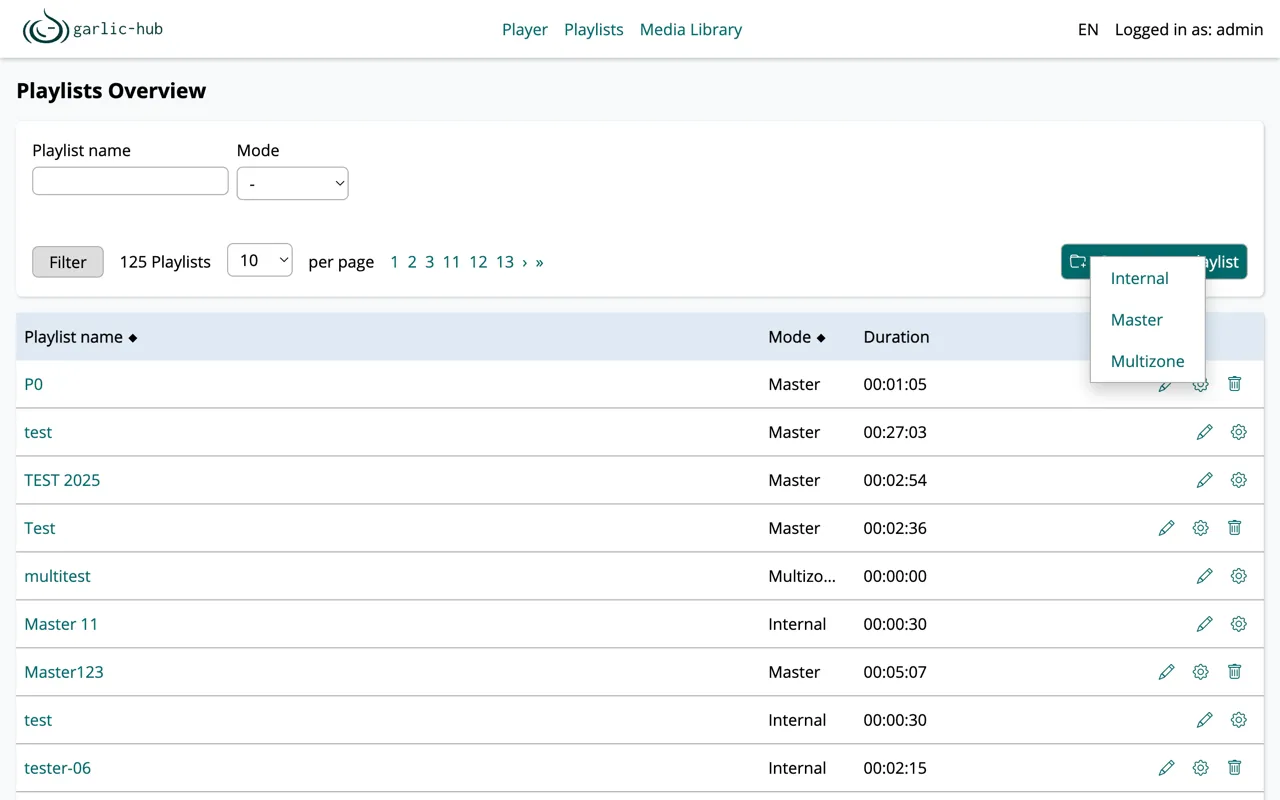
After picking a mode you land on the playlist settings. The fields differ per mode.
Internal
Internal playlists only need a name and an owner.
- Playlist name is the name shown in the list.
- Owner is the user the playlist belongs to. This matters in multi-user installations for visibility and permissions.
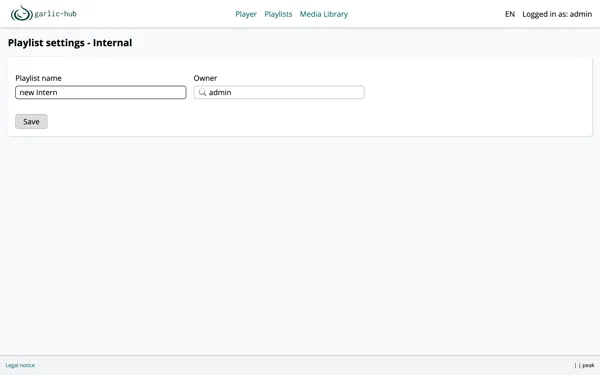
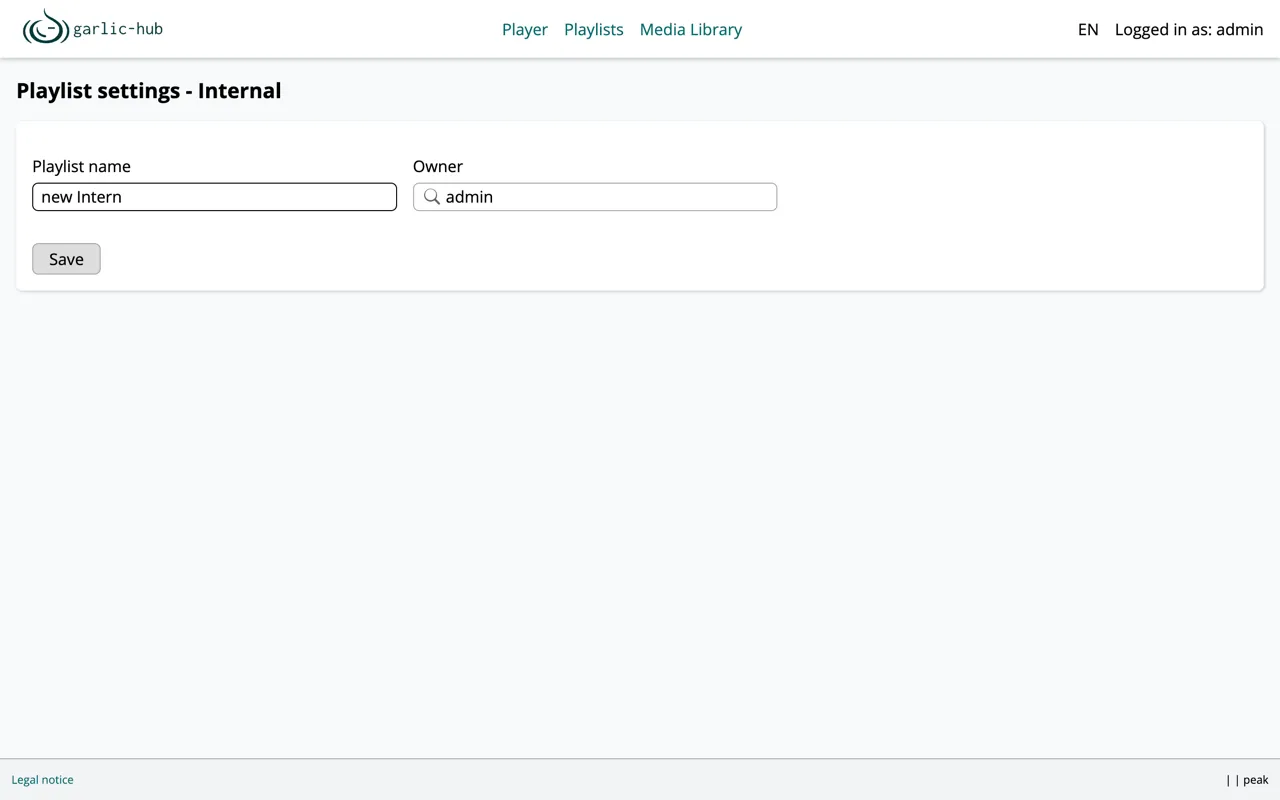
Master
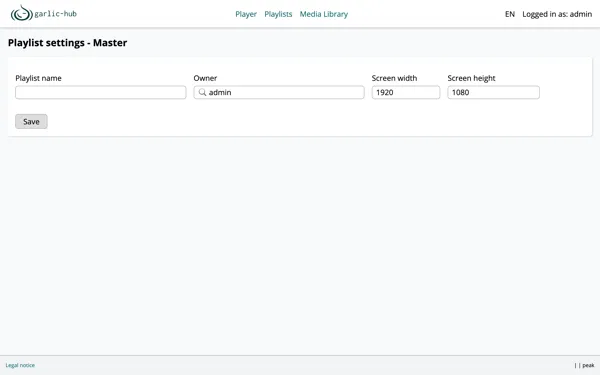
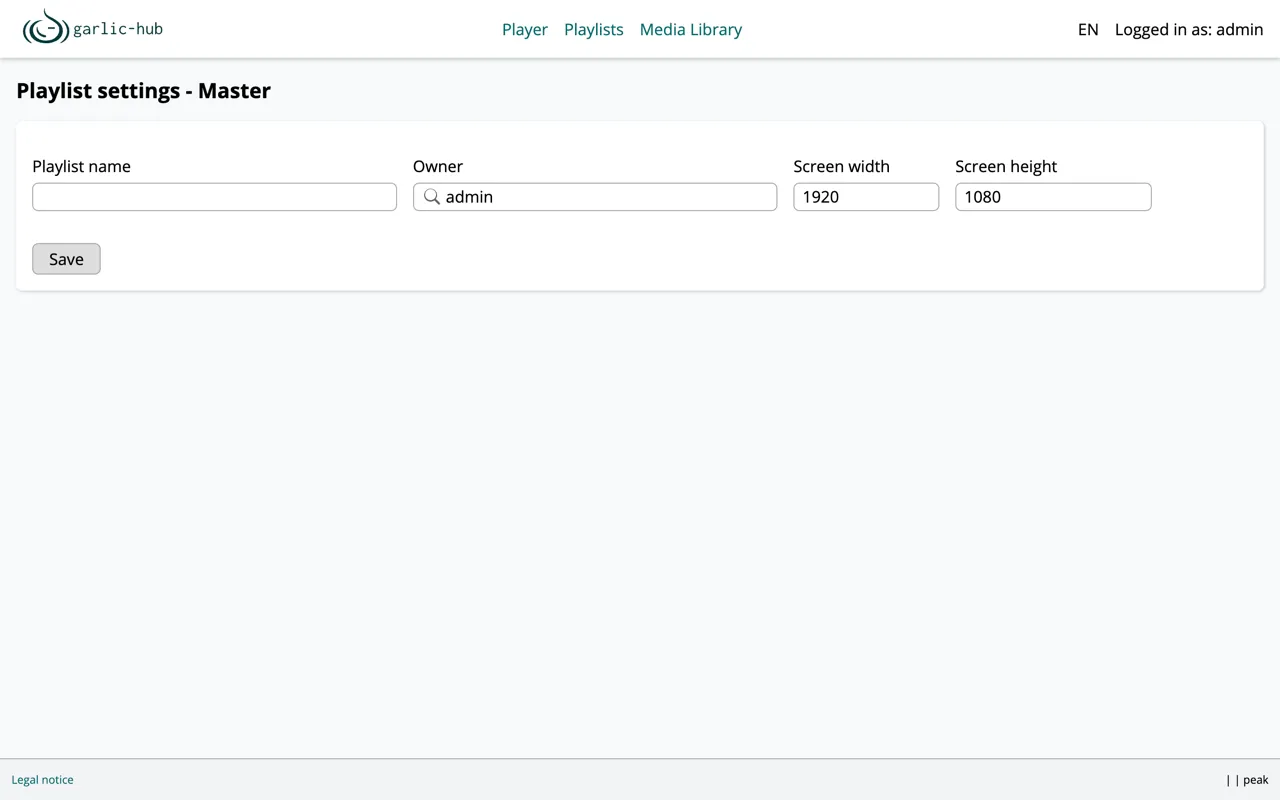
Master playlists add a screen resolution, since they are played directly on a screen.
- Screen width and Screen height define the resolution the playlist is built for, in pixels. The default is 1920 by 1080.
Multizone
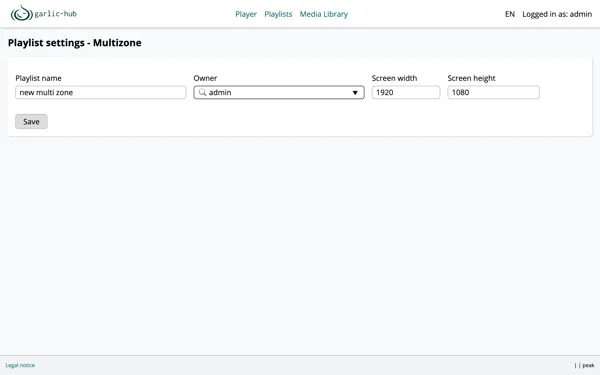
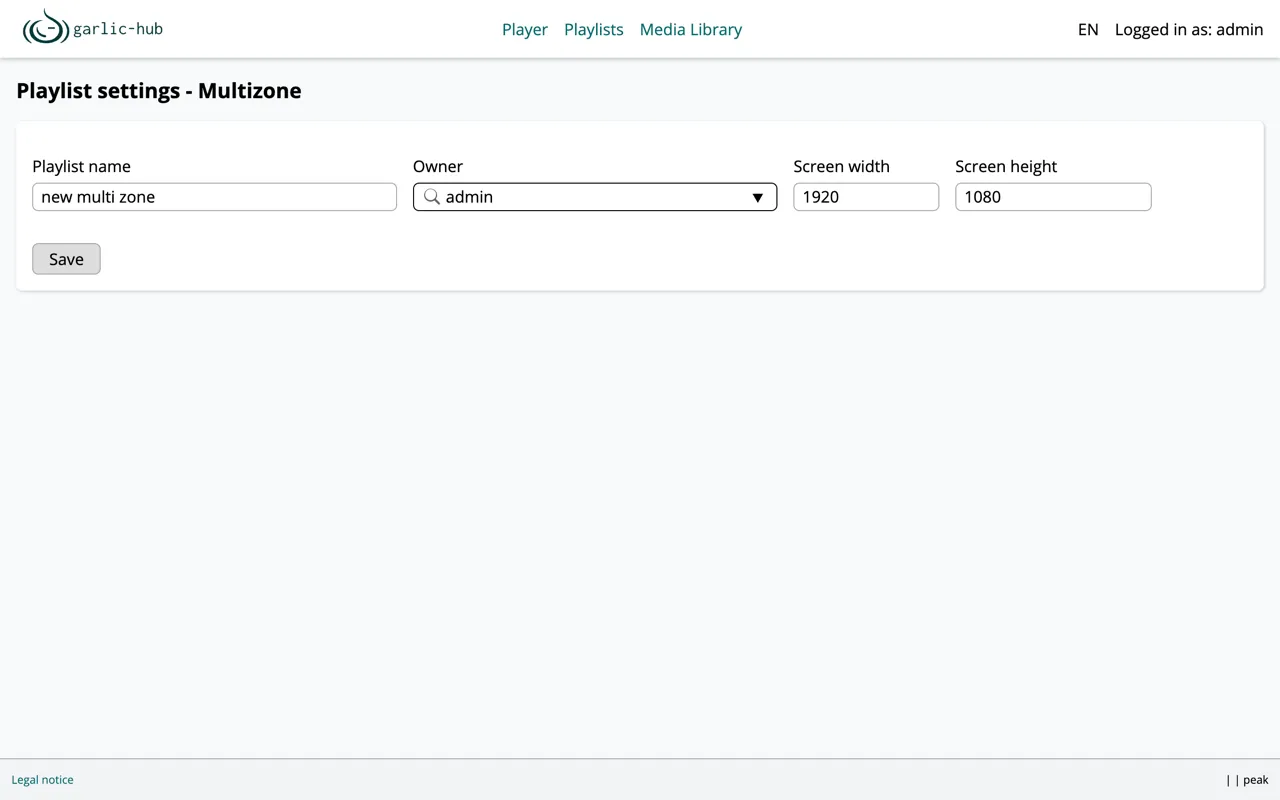
Multizone playlists also carry a screen resolution. The resolution defines the canvas you later split into zones in the Multizone Composer.
- Screen width and Screen height set the size of that canvas in pixels.
Click Save to create the playlist. It then appears in the overview, from where you can open it and start adding content.