Multizone Composer
The Multizone Composer splits the screen into several zones that play at the same time. Each zone runs its own playlist, so you can show advertising in one area, a news ticker in another and a logo in a corner, all on the same screen. Zones may also overlap, which lets you put a ticker or an overlay on top of running content. You lay the zones out on a canvas, much like in a vector editor.
Each zone plays a Master playlist that you build in the Playlist Composer. For the difference between the playlist modes, see Playlist Concepts.
Creating Zones
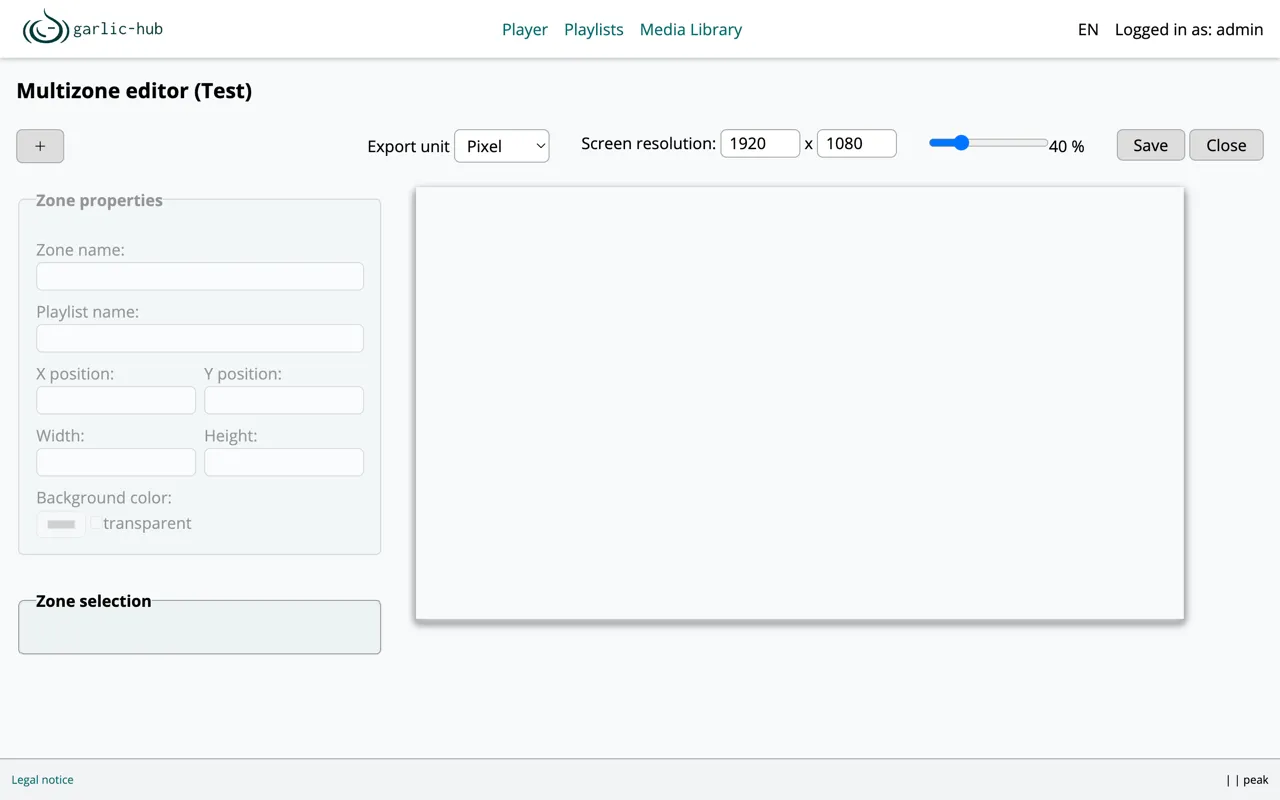
Click the plus icon in the top left to add a zone. A new zone is created in the top left corner as a square on the topmost layer, from where you move and resize it. A multizone playlist needs at least one zone. A Master playlist is at the end just a multizone with one zone.
Editing Zones on the Canvas
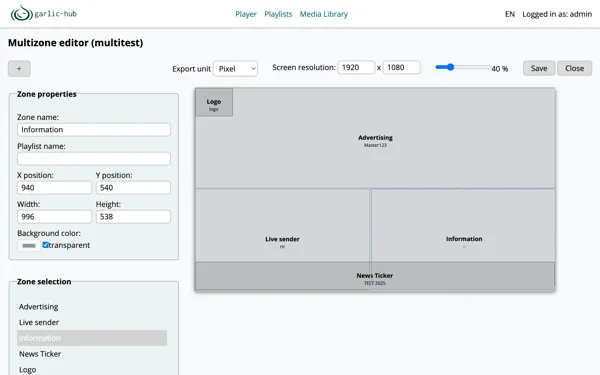
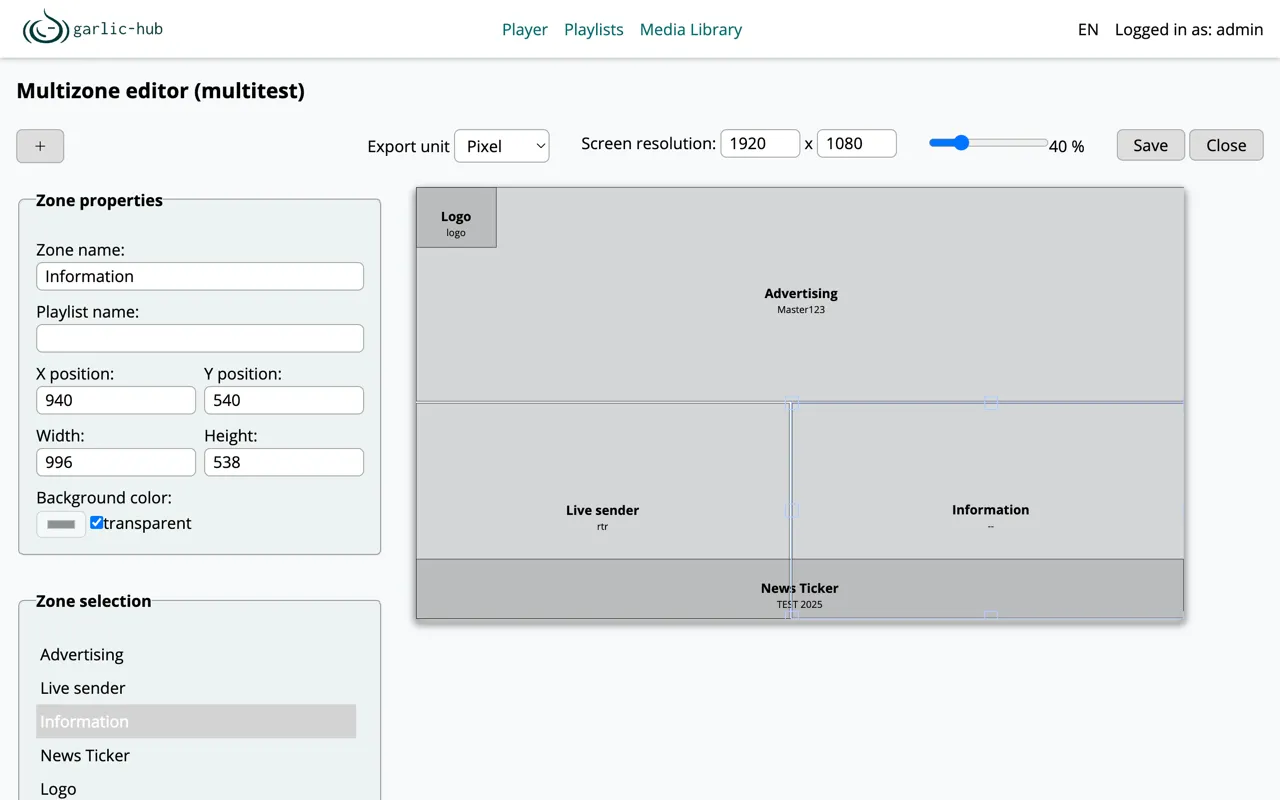
You edit zones directly on the canvas. Left-click a zone to select it, drag it to move it and drag its handles to resize it. Movement and resizing snap to a 10 pixel grid. Under the zone name the assigned playlist is shown.
Zones may overlap. The stacking order then decides which zone shows on top. Because of that, each zone has a right-click context menu that controls the stacking order and a few more actions. A zone that reaches past the screen edge is cut off at that edge.
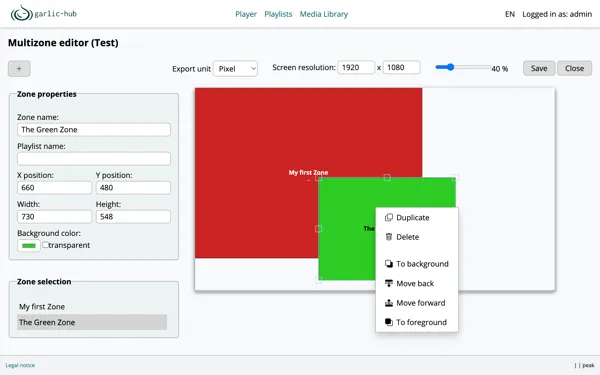
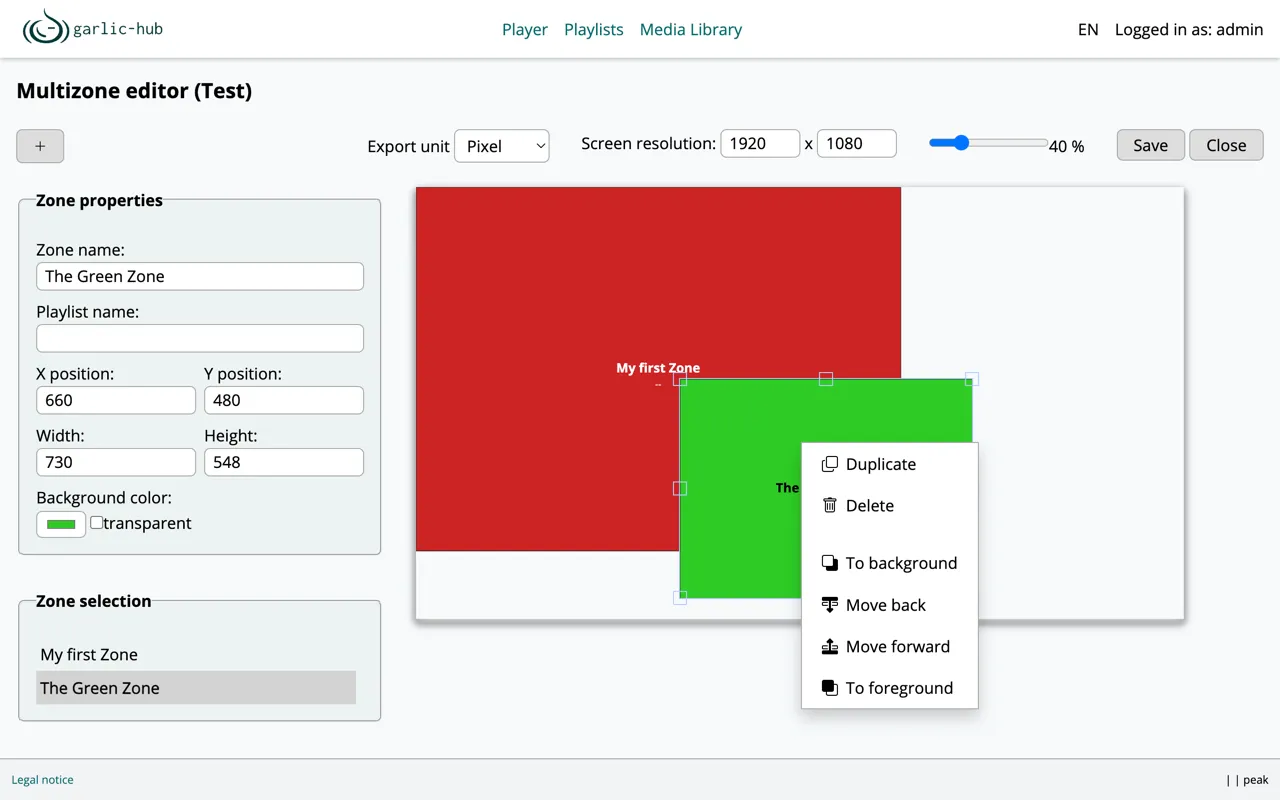
- Duplicate creates a copy of the zone, including its assigned playlist.
- Delete removes the zone. This is only available here on the canvas.
- To background and To foreground send the zone all the way to the back or the front.
- Move back and Move forward move the zone one step in the stack.
Zone Properties
The Zone properties panel is there when you want to set values by hand instead of with the mouse. It applies to the selected zone.
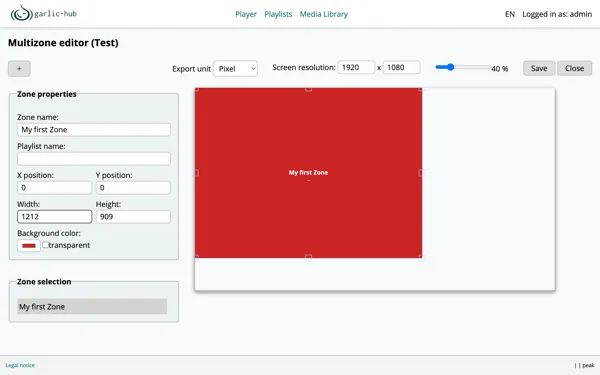
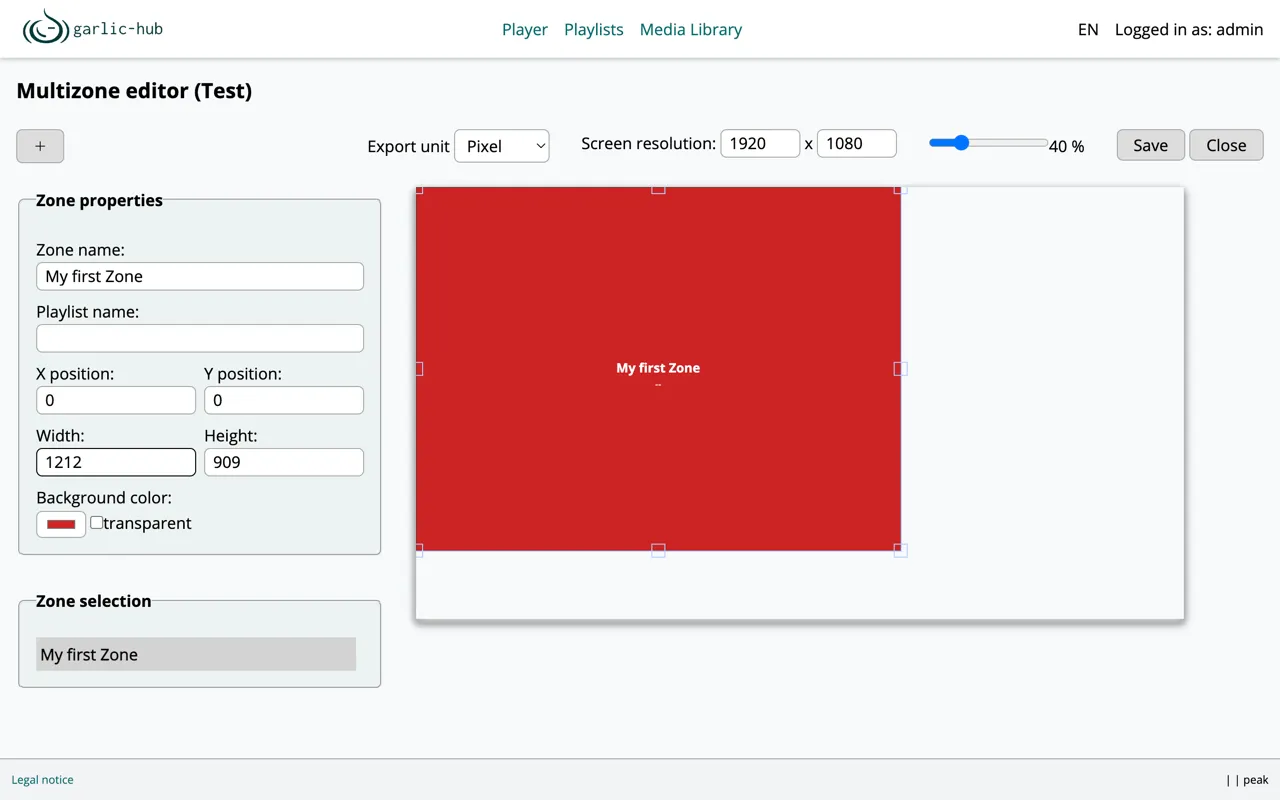
- Zone name is the label shown on the zone.
- Playlist name assigns the playlist that plays in this zone. It is an autocomplete field and only accepts Master playlists. Internal playlists and other multizone playlists cannot be used here. If a zone has no playlist, its area stays black.
- X position and Y position set the top left corner of the zone.
- Width and Height set its size.
- Background color fills the zone, or you tick transparent to leave it clear. Not every media player renders a zone background color. For example: The garlic-player does, an IAdea player does not, so use it only if your player supports it.
Zone Selection
The Zone selection list shows all zones. Click one to select it for editing. This is useful when a zone sits behind others, and you cannot reach it with the mouse.
Screen and Export Settings
The bar at the top holds the settings for the whole layout.
- Export unit switches between Pixel and Percent. Percent is usually the better choice, since a layout defined in percent keeps the same proportions on a Full HD screen and on a 4K screen. Zones in percent are scaling with the screen on the player. In the composer they do not scale, changing the resolution only makes the canvas larger. Pixel ties the layout to one exact resolution.
- Screen resolution is the resolution of the whole screen and matches what you set for the playlist.
- The scale slider only shrinks the canvas so it fits into the browser window. It is saved but has no effect on the zones themselves.
Saving and Closing
Save stores the layout and exports it for the player at the same time, so there is no separate export step here. Close leaves the editor, and if you changed something it asks you to confirm first so you do not lose unsaved work.