Playlist Composer
The Playlist Composer is where you build the actual content of a playlist. You add items, arrange their order, set how long each one is shown, and control when an item plays. The result is what the player will show on screen.
The Composer Layout
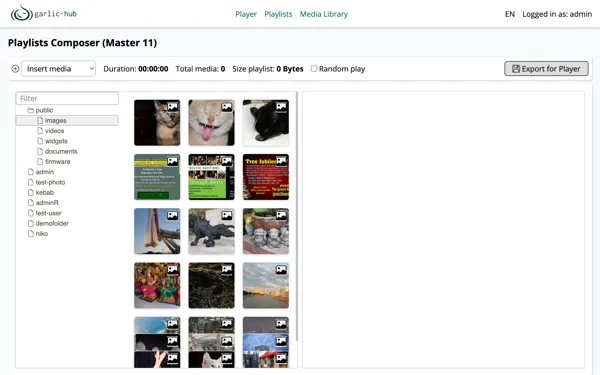
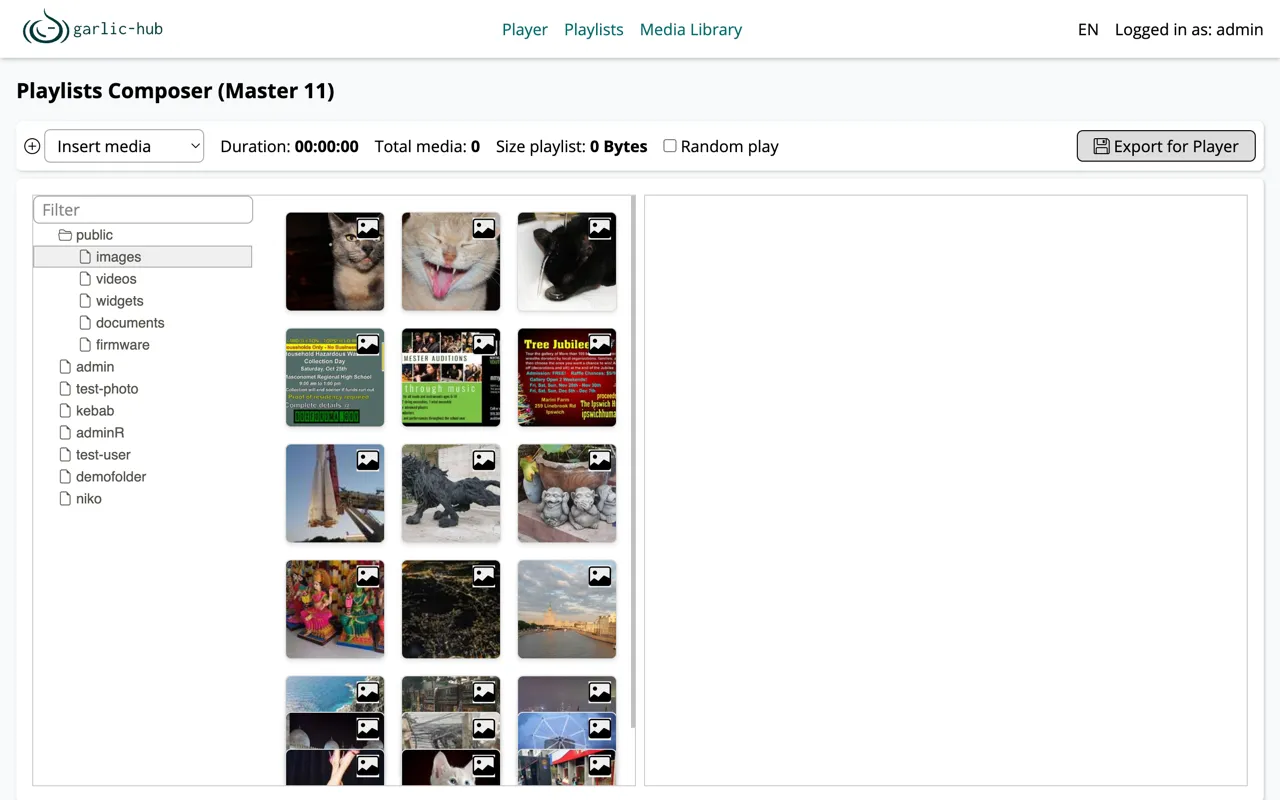
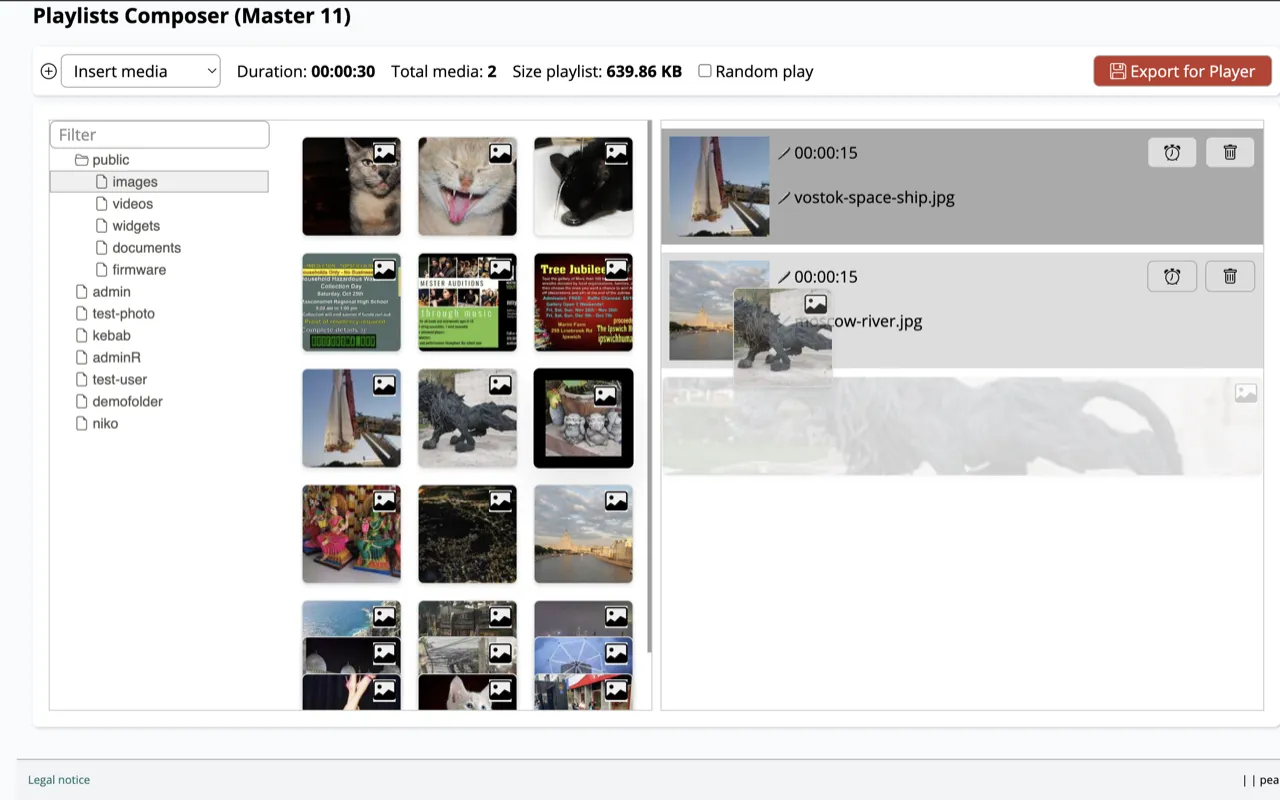
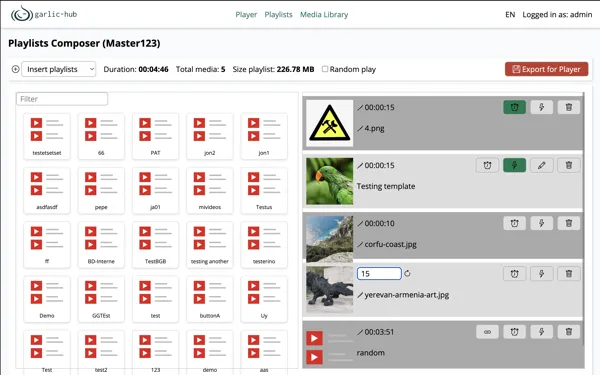
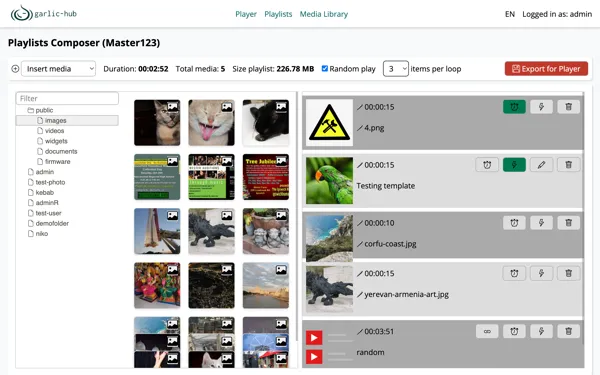
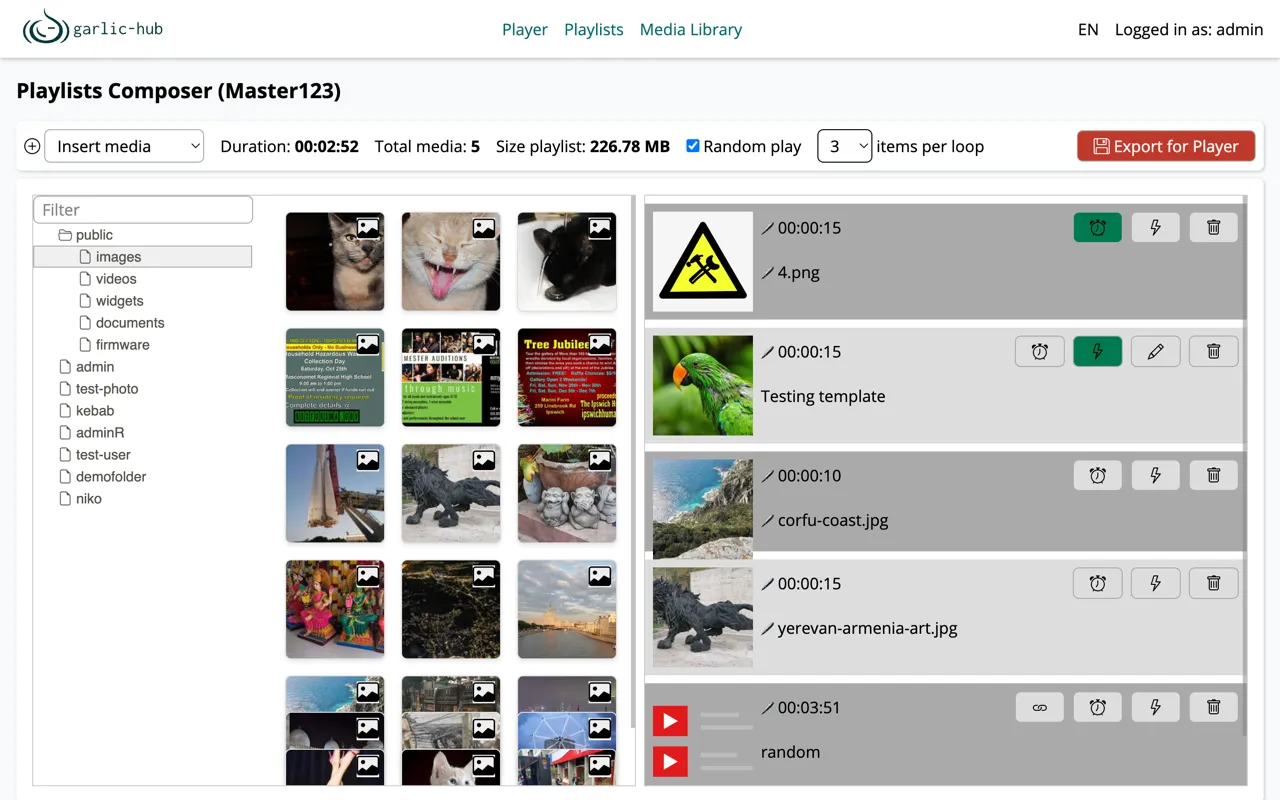
The composer has two panels. The left panel is the source you pick content from. The right panel is the playlist itself, where items play from top to bottom.
The bar at the top shows the totals and the main actions:
- Duration is the total playback time of the playlist.
- Total media is the number of items in the current list. Items inside a nested playlist are not counted here.
- Size playlist is the combined file size of all items, which matters for the storage and transfer to the player.
- Random play changes the playback order. See Random Play.
- Export for Player hands the playlist to the player. See Saving and Exporting.
Adding Content
The plus menu at the top left switches what the source panel shows.
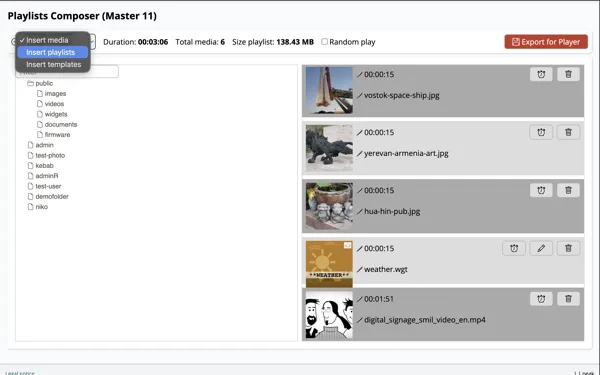
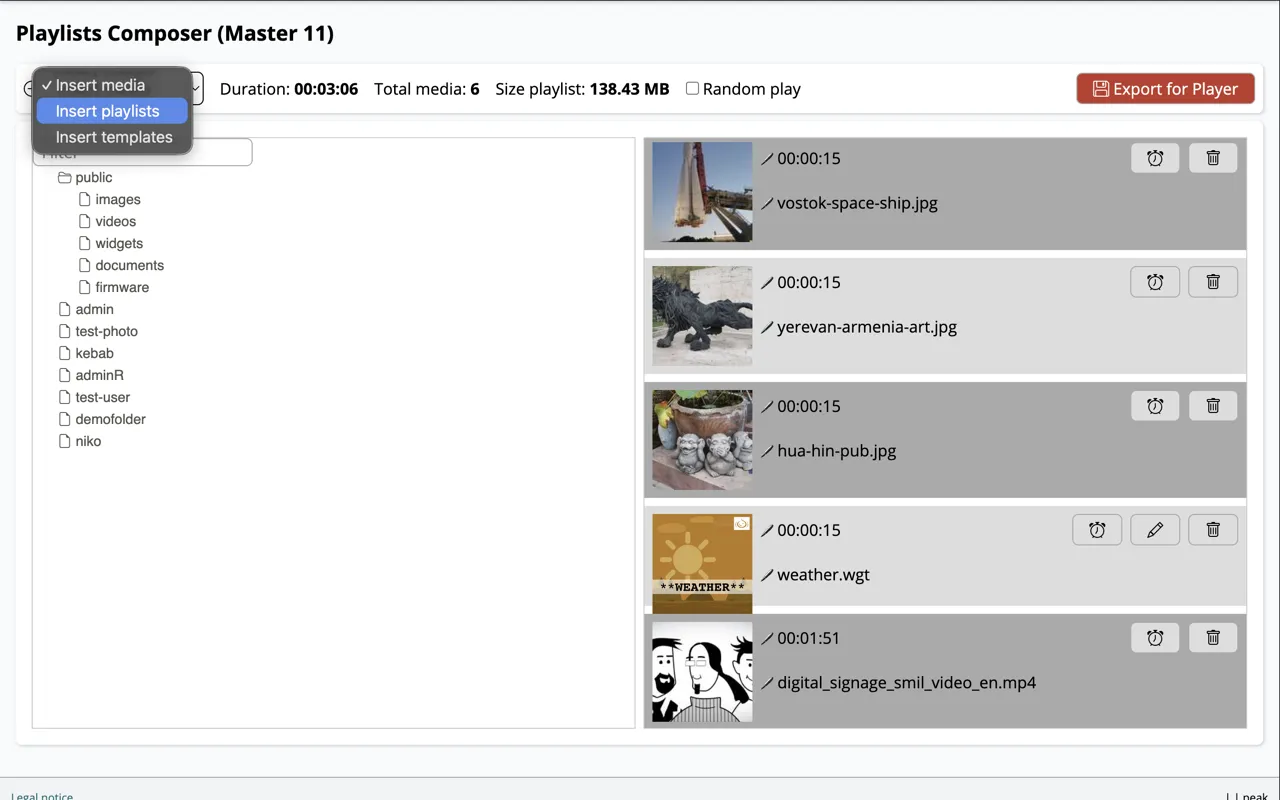
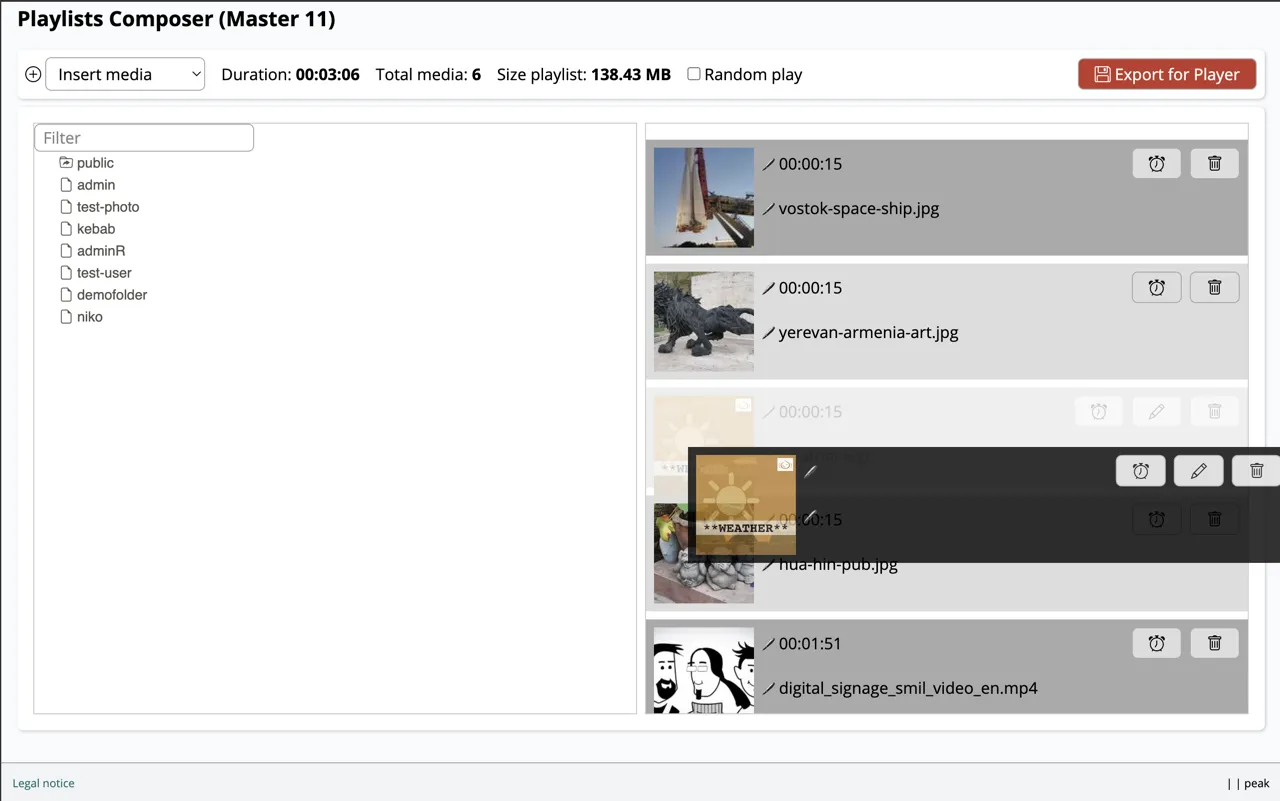
- Insert media shows the media tree with images, videos, widgets, documents and firmware. This is the same tree as in the media pool. Only images, videos and widgets can be added to a playlist, so documents and firmware are hidden here. Browse the folders or use the filter to find a file. Widgets such as a weather widget live in the widgets folder and are added the same way.
- Insert playlists lets you add another playlist as an item. A playlist inside a playlist is called nesting and is useful to reuse a block of content in several playlists without rebuilding it.
- Insert templates adds a template. Templates are edited with their own editor, described in a separate page.
To add an item, drag it from the source panel onto the playlist on the right. The same media can be added more than once, for example to repeat a clip between others.
The nesting depth is not limited, but more than about four levels gets hard to follow. Only Internal playlists can be nested into each other. A Master playlist cannot be placed inside another playlist. Circular nesting, where A contains B and B contains A again, is not allowed and is checked.
Ordering Items
The playlist plays from top to bottom. To change the order, drag an item to a new position within the right panel.
Setting the Duration
Each item shows its duration and its name, each with its own pencil. Click the pencil next to the time to edit the duration, or the pencil before the name to rename the item.
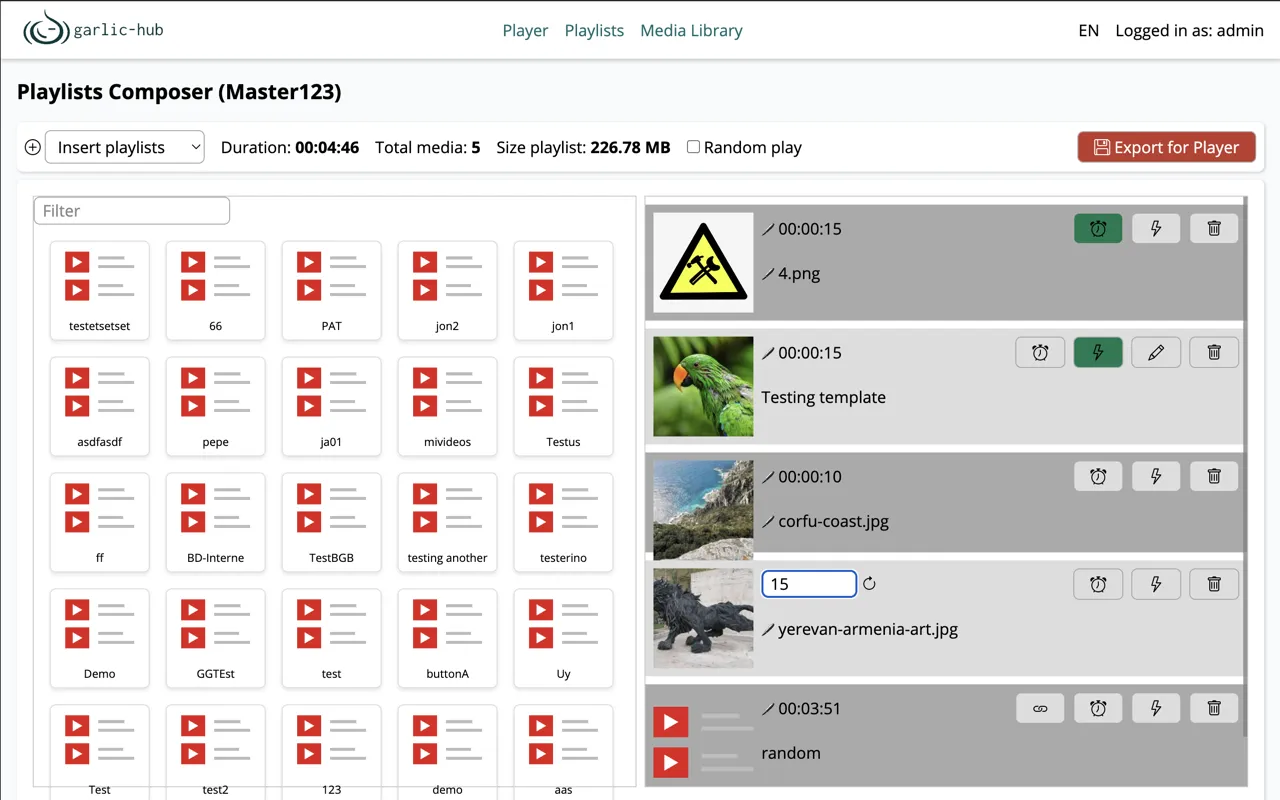
Enter the duration in seconds. The round arrow resets it to the default. For images, widgets and templates, which are also images, the default is 15 seconds. For videos the default is their own length in seconds, so the duration mainly applies to images, templates and widgets.
Item Actions
Each item has its own icons on the right.
- Conditional Play (clock) opens the time rules for the item. See Conditional Play.
- Trigger (lightning) opens the trigger rules for the item. See Triggers.
- Edit (pencil) only appears on template items and opens the template editor, described on its own page.
- Delete (trash) removes the item from the playlist only. The file stays in the media pool and is not deleted there.
- Link (chain) appears on nested playlist items and points to the playlist it references.
The clock and the lightning icon turn green when rules are stored for that item, so you can see at a glance which items have conditional play or a trigger set.
Conditional Play
Conditional play controls when an item is allowed to play. You use it to restrict an item to a date range, a daily time window, or certain weekdays.
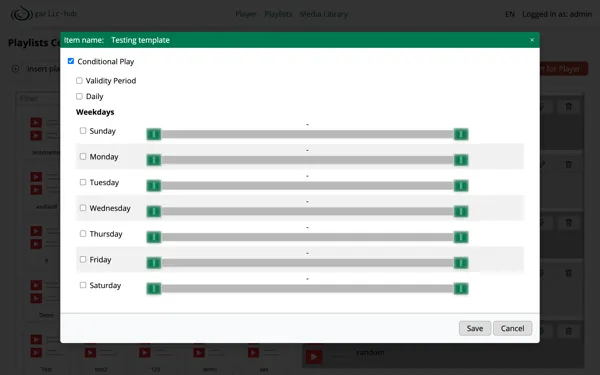
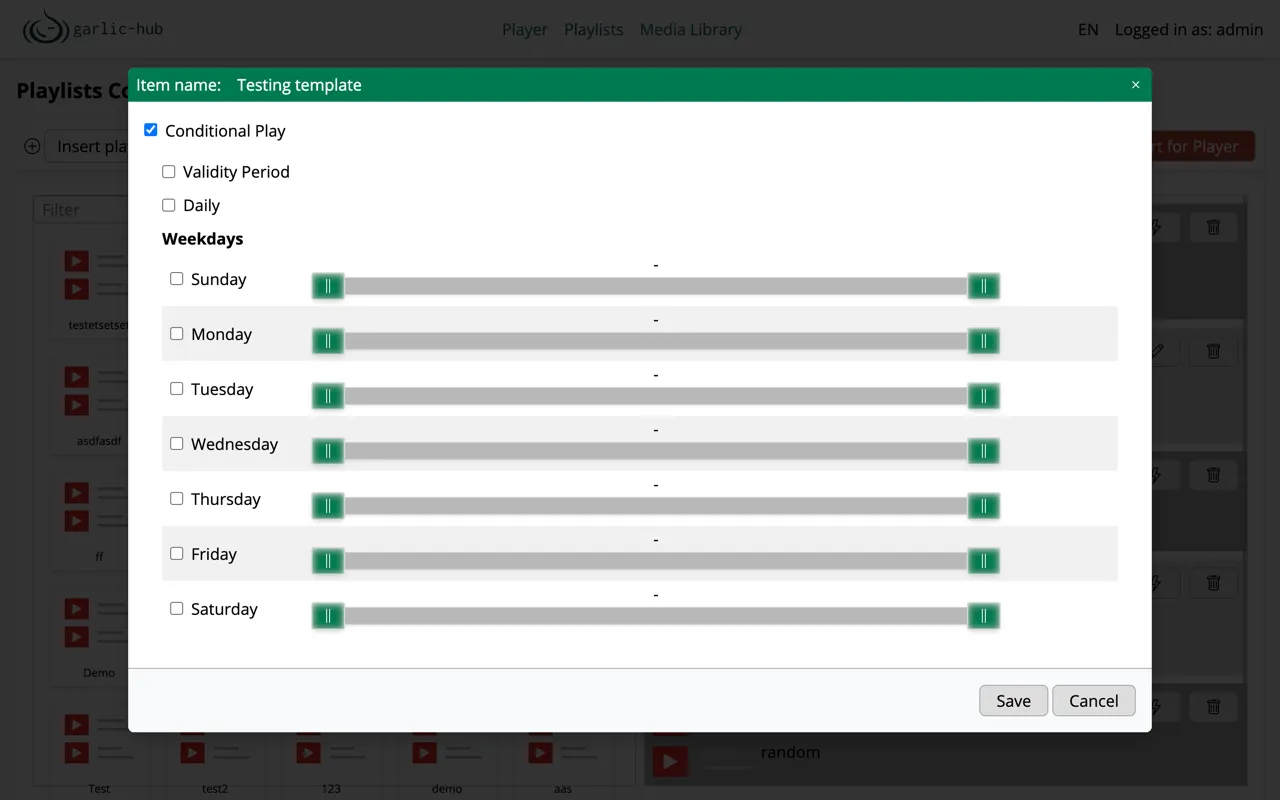
- Validity Period sets a start and end date. The item only plays within this date range, for example a campaign that should run for two weeks.
- Daily sets a start and end time that restricts the item further on each day, for example only from 13:00 to 20:00.
- Weekdays are separate values. You enable single days and set a time range for each one with the slider.
You can combine the validity period with the weekdays, or use only one of them. The weekday values apply within the validity period when both are set.
A green clock icon on the item means values are stored here.
Triggers
A trigger starts an item on an event instead of in the normal sequence. This is what you use for interactive or scheduled content. The triggers here are start triggers, they decide when an item begins. You can add more than one trigger of each type.
Triggers only exist in a Master playlist, the playlist that is assigned directly to the player. Internal playlists cannot hold triggers, because organizing them across large nesting hierarchies would get chaotic.
When an item also has conditional play set, its triggers only fire within the conditional play window.
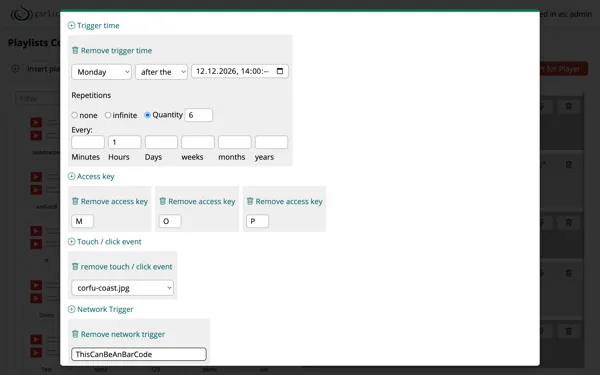
- Trigger time starts the item on a schedule. You pick a weekday and a date with time, and the item starts on the first matching weekday after that date and time. In the example it starts on the first Monday after the date at 14:00. Repetitions sets how often it repeats, either none, infinite or a fixed quantity, and Every sets the interval between repetitions in minutes, hours, days, weeks, months or years. The example repeats 6 times.
- Access key starts the item when a matching key code comes in. These are normal keyboard key codes, but the source does not have to be a keyboard. Anything that can send these codes works. You can store several keys.
- Touch / click event starts the item this trigger belongs to when the media you select in the dropdown is touched or clicked. So one item acts as the button that starts another.
- Network Trigger starts the item on a matching network message. A common use is a barcode scanner that sends the scanned code to the player. The player finds the matching trigger in the playlist and shows the triggered item, for example a product page with the price or current information stored behind that code.
A green lightning icon on the item means values are stored here.
Random Play
With Random play the items are played in random order instead of top to bottom. When you enable it, an items per loop selector appears that sets how many items are played in each loop, so a long playlist can show only a few random items per cycle.
Saving and Exporting
Every change you make in the composer is saved right away. You can keep working on a playlist at any time without losing anything.
The player does not pick up these changes on its own. It keeps showing the last exported version while you work, so your editing never interrupts what is currently on screen. Only when you click Export for Player does the player start to use the new version and keep it up to date from then on.
So the rule is simple: edit as much as you like, and click Export for Player when you want the player to switch to your new version. An empty playlist has nothing to export.