Player Management
The Player section lists all players registered in garlic-hub and lets you assign, change, or remove the playlist each player runs. A typical workflow is to create a playlist in the Playlist Composer first, then assign it to a player here.
Players register themselves in a garlic-hub. You do not create a player record by hand in the overview. Instead, you point the player at the garlic-hub instance, and once it connects, it appears in the list with its last access time and model. From there you assign a playlist and manage it. See Connect a Media Player for how to set up a garlic-player or IAdea player so it shows up here.
Player Overview
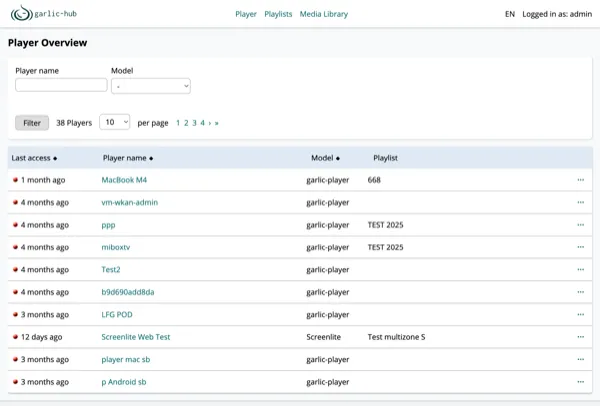
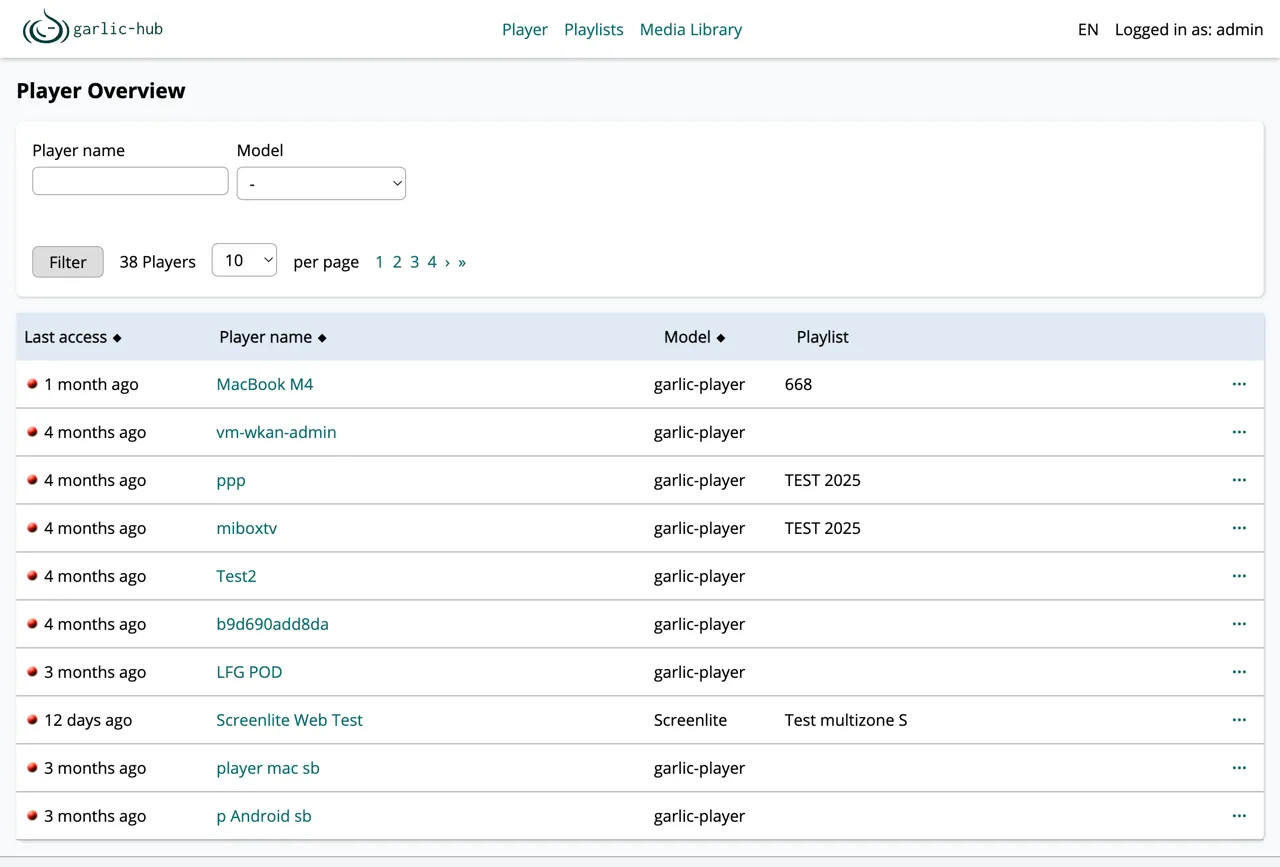
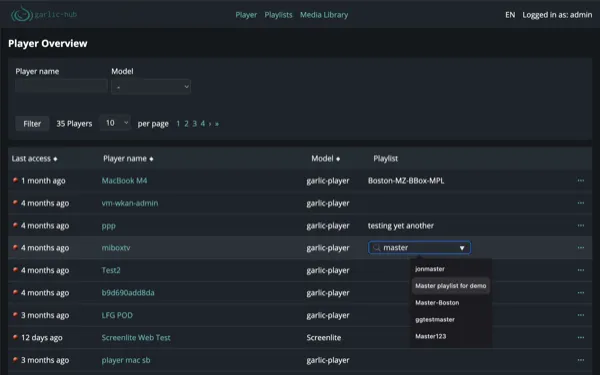
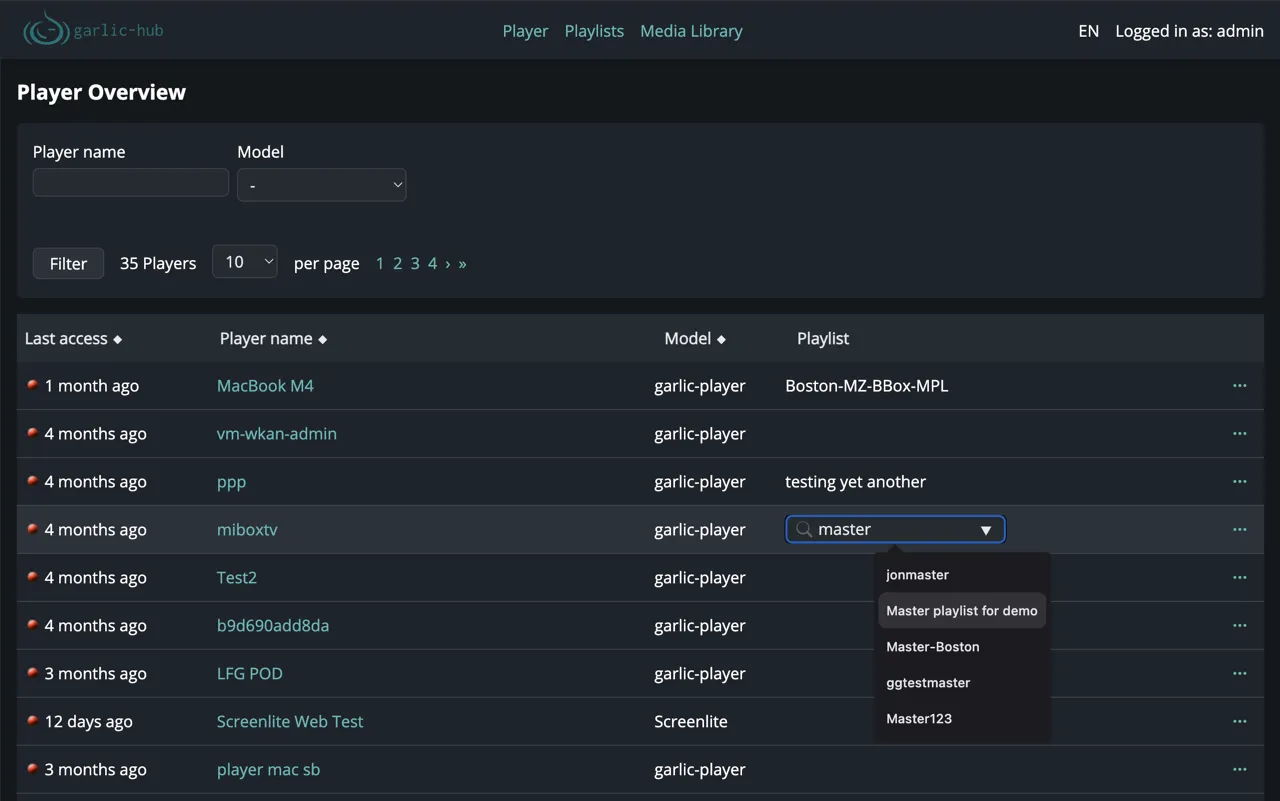
The overview shows every player with its last access time, name, model, and currently assigned playlist. The assigned playlist is shown directly in the Playlist column. A player can also exist without an assigned playlist, in which case the column stays empty.
Sorting and Pagination
Click a column header (Last access, Player name, Model) to sort the list by that column. Use the per page selector to choose how many players are shown per page, from 0 up to 100, and the page numbers to move through the list.
Filtering
Use the filter fields to narrow the list by player name or by model (the player device or software the player is running). garlic-hub supports the garlic-player, Screenlite, all IAdea players since 2011, the SMIL players from Qbic International, and the iDS-Player. Supported models include garlic-player, IAdea players (2011 and later), Qbic International SMIL players, and the iDS-Player.
Last Access Status
The colored dot in front of the last access time shows the player’s connection status, based on missed refresh cycles:
- Green: player has connected within the expected refresh cycle
- Yellow: player has missed more than 2 refresh cycles
- Red: player has missed more than 4 refresh cycles
A red status means the player has not connected to the CMS for about 4 refresh cycles, currently around 20 minutes. Common causes are a disrupted internet connection, player downtime, or crashed player software.
The refresh cycle is currently fixed at 5 minutes.
Assigning and Managing Playlists
Open the three-dot menu on a player row to manage its playlist. The menu is context-dependent and only shows the actions that apply to that player. Go to playlist, for example, appears only when a playlist is assigned.
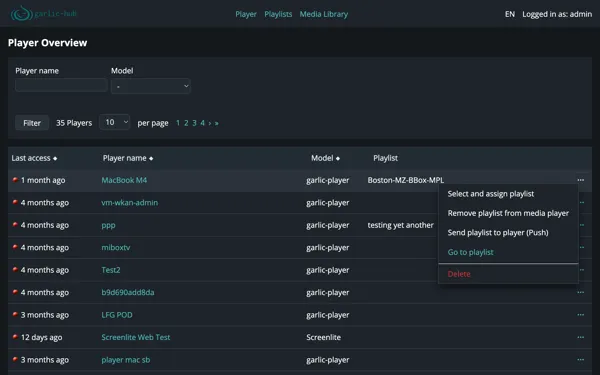
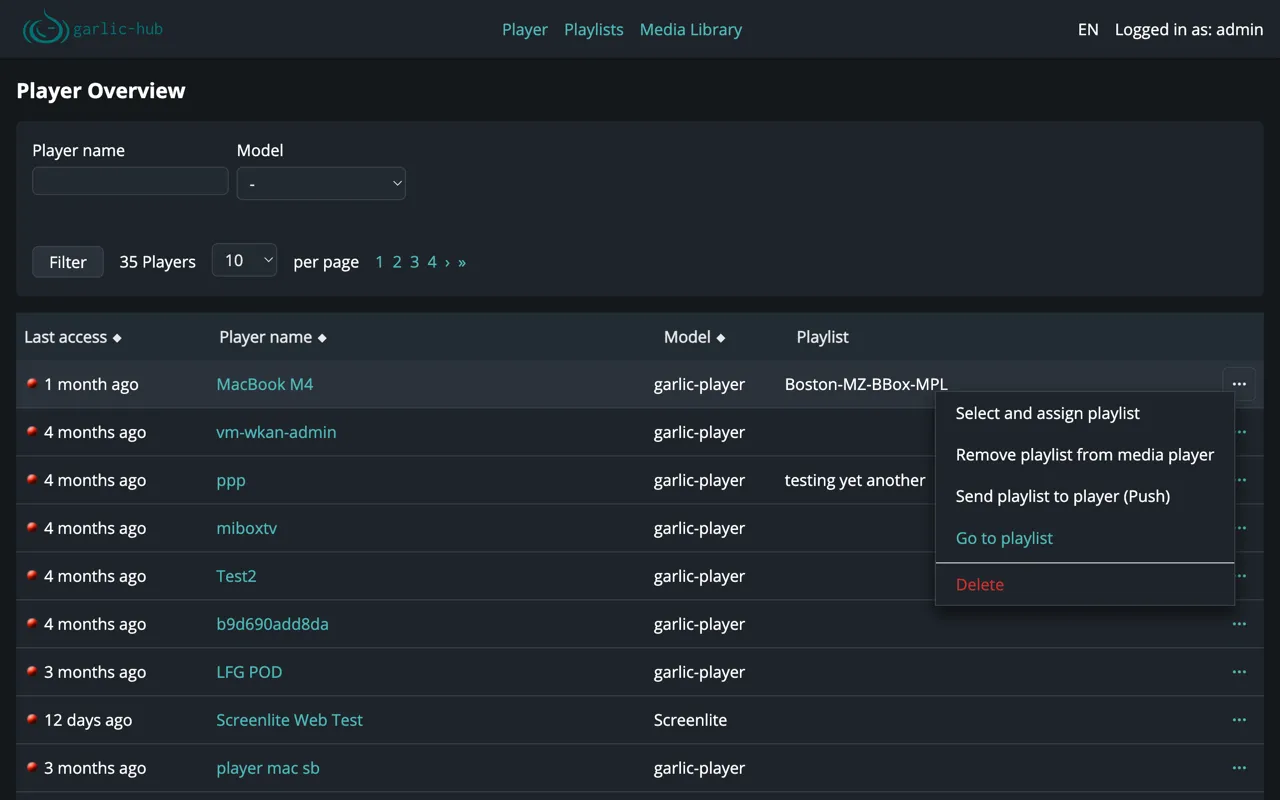
Available actions:
- Select and assign playlist: opens a search field to pick a playlist for this player
- Remove playlist from media player: unassigns the current playlist
- Send playlist to player (Push): pushes the playlist to the player immediately, see Push vs. Poll below
- Go to playlist: opens the assigned playlist in the Playlist Composer
- Delete: removes the player record from garlic-hub
Only Master and Multizone playlists can be assigned directly to a player. Internal playlists cannot, since they only exist nested inside other playlists.
Push vs. Poll
How a player receives a new or updated playlist depends on its network connectivity:
Both push and poll deliver the last exported (saved) state of the playlist, not unsaved changes still held in the database. Export the playlist before pushing or waiting for the next poll.
- If the player is reachable directly (same network or intranet) and exposes a Rest-API like the garlic-player or the IAdea player, garlic-hub can push the playlist to it immediately using Send playlist to player (Push).
- Otherwise, the player polls garlic-hub for playlist updates every 5 minutes. This interval is currently fixed and will become configurable in a future release.
Use push when the player is in the same network, and you want an immediate update. Poll is the fallback when the player sits behind a NAT firewall and cannot be reached directly, which is the case in most internet environments.
Whether push is available for a player is configured on its Player API Connectivity page.
Deleting a Player
The Delete entry in the context menu removes the player record. This does not affect the playlist itself.
Player API Connectivity
Click a player name to open its API Connectivity settings. This is currently the only settings page for a player. Further settings will follow as additional tabs.
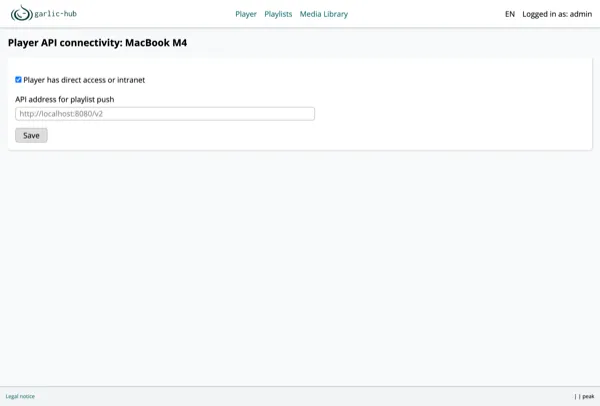
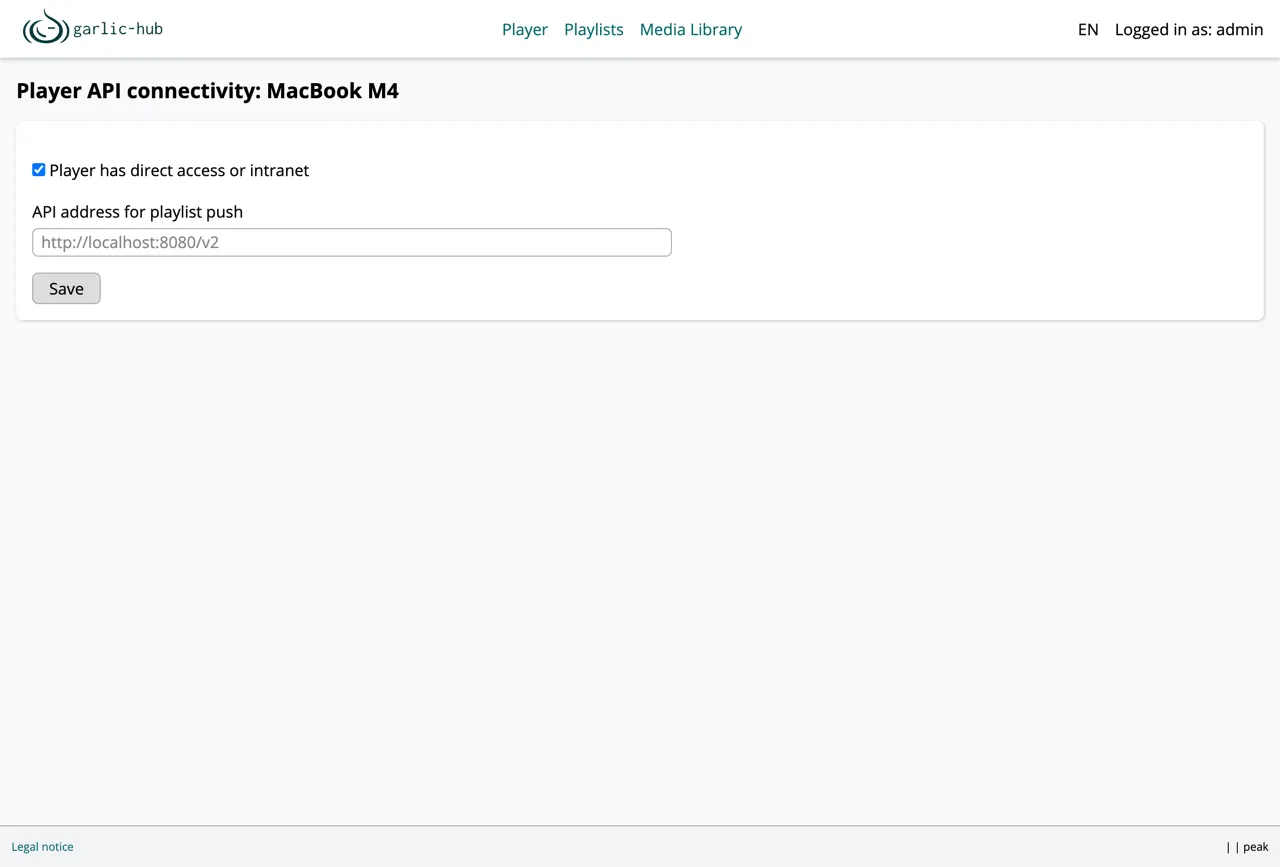
- Player has direct access or intranet: enable this if garlic-hub can reach the player directly over the network. This is required for push to work.
- API address for playlist push: the address garlic-hub uses to push playlists to the player, for example
http://localhost:8080/v2.
More player settings will be added on this page in future releases.